

 Click on the Category button to get more articles regarding that product.
WHO: You Blog with Winword to WordPress or Blogengine.net and want to auto resize the pictures direct in Winword (Not in the blog with some risky plugin)
I do not like macros in any form due to security reasons (we block them wherever we can), but there might be a reason to use one locally if you often blog with Word, for example, on WordPress, and you like taking screenshots like I do. Here’s how to include a macro that will automatically resize the width to 400.
- Open Winword
- Press ALT + F11
- Choose left side “NORMAL” and the dopdown INSERT > Module
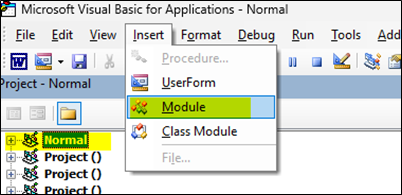
- Paste the FULL code from below box into the code window
- Close the Code Windows
- Close Winword
- Open Winword
- Choose NEW Blog template
- Start the BLOG write as example for WordPress
- Select the image
- Press ALT + F8
- Enter
- Leave (300) or type the size
- Enter
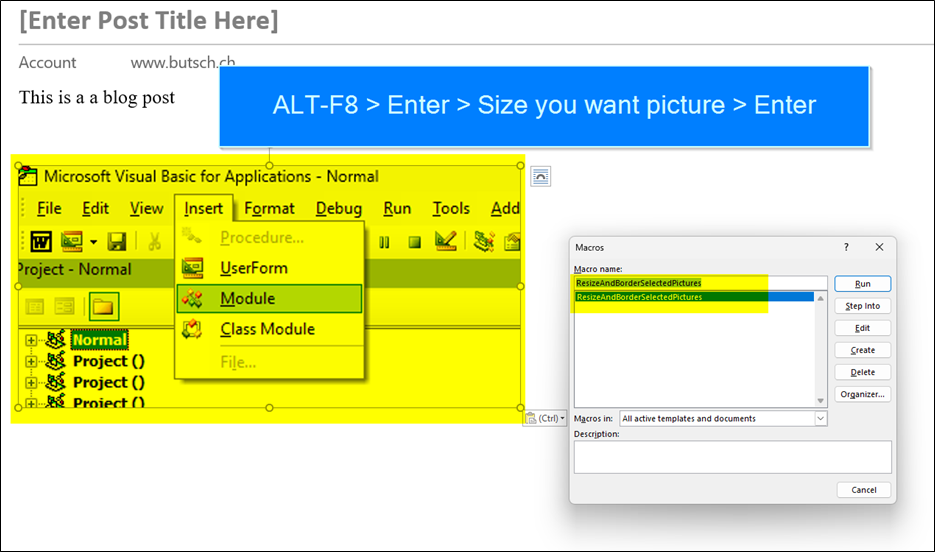
| AdjustPictureSizeAndAddBorders, change the VALUE width of the pics from 400 to what you want |
| Sub AdjustPictureSizeAndAddBorders()
Dim img As InlineShape Dim targetWidth As Single Dim aspectRatio As Single ‘ Request user input for the new image width (in points) targetWidth = InputBox(“Specify the width (in points) for the selected images:”, “Resize Images”, 400) If IsNumeric(targetWidth) = False Or targetWidth <= 0 Then MsgBox “Please provide a valid positive number for the width.”, vbExclamation Exit Sub End If ‘ Iterate through each inline shape in the current selection For Each img In Selection.InlineShapes If img.Type = wdInlineShapePicture Or img.Type = wdInlineShapeLinkedPicture Then ‘ Maintain aspect ratio while adjusting the height based on the new width aspectRatio = img.Height / img.Width img.Width = targetWidth img.Height = targetWidth * aspectRatio ‘ Apply a 1px solid black border to all sides of the image img.Borders(wdBorderLeft).LineStyle = wdLineStyleSingle img.Borders(wdBorderLeft).LineWidth = wdLineWidth025pt img.Borders(wdBorderLeft).Color = RGB(0, 0, 0) img.Borders(wdBorderRight).LineStyle = wdLineStyleSingle img.Borders(wdBorderRight).LineWidth = wdLineWidth025pt img.Borders(wdBorderRight).Color = RGB(0, 0, 0) img.Borders(wdBorderTop).LineStyle = wdLineStyleSingle img.Borders(wdBorderTop).LineWidth = wdLineWidth025pt img.Borders(wdBorderTop).Color = RGB(0, 0, 0) img.Borders(wdBorderBottom).LineStyle = wdLineStyleSingle img.Borders(wdBorderBottom).LineWidth = wdLineWidth025pt img.Borders(wdBorderBottom).Color = RGB(0, 0, 0) End If Next img MsgBox “The selected images have been resized and borders added successfully.”, vbInformation End Sub |