

 Click on the Category button to get more articles regarding that product.
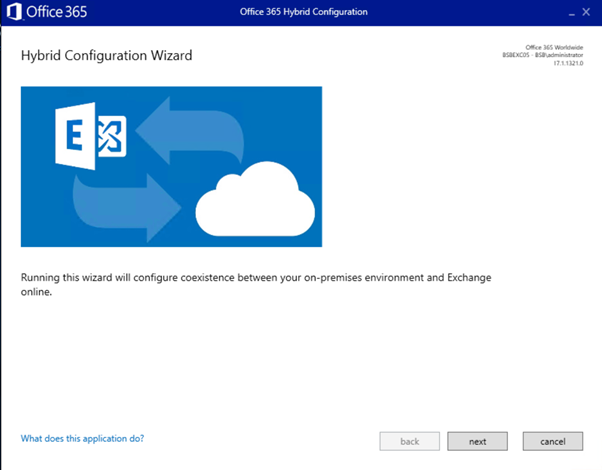
Problem: The Exchange Hybrid Configuration Wizard does not open anymore or can’t be installed.
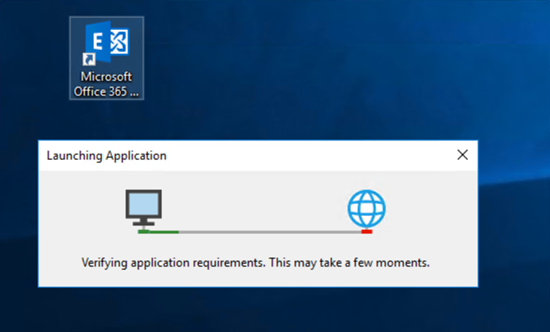
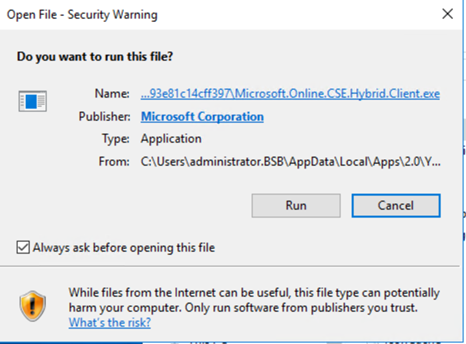
You try to reopen the HCW from the URL: https://aka.ms/hybridwizard it flashes shortly and closes again.
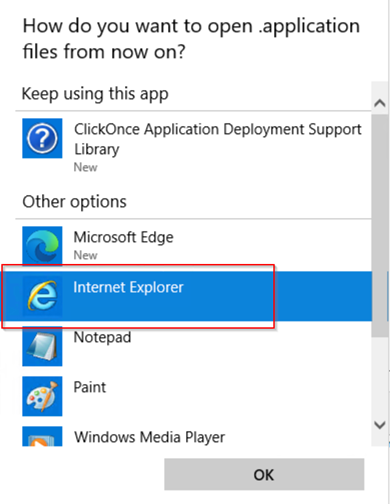
The reason is because default Browser switched to EDGE from IE. An Edge Chromium does not handle the ClickOnce Deployment method very well.
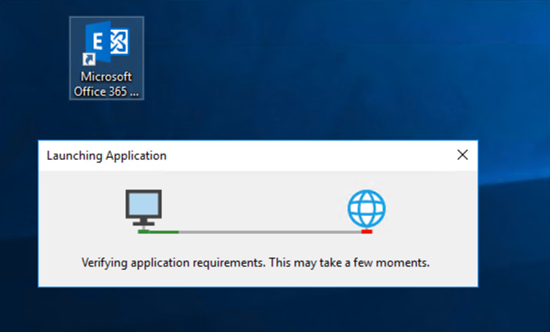
Quick Solution > This will change the Default browser that ClickOnce Apps use make sure you don’t’ have any other APPS on the server that uses that deployment technology. Otherwise use the workaround at the of this post with a second temporary “new file Extension” just for the Hybrid Wizard start.
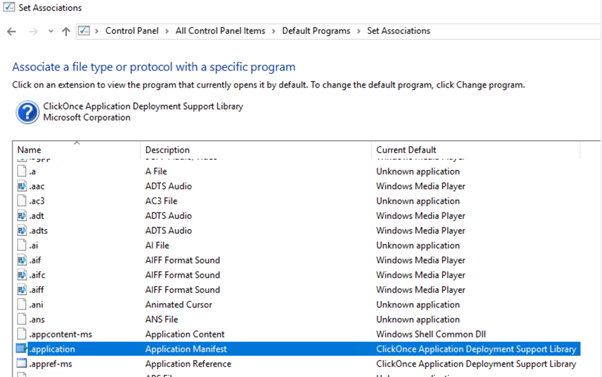
1) Check if CLickOnce Application Manifest “.application” extension is BOUND to which Browser (IE or EDGE)
control /name Microsoft.DefaultPrograms
On older Server OS:
On newer server OS:
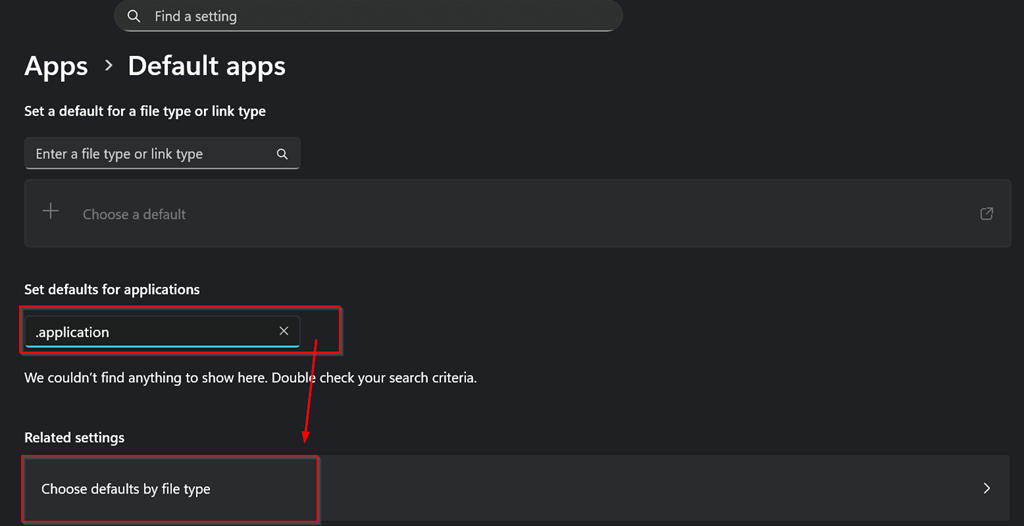
Search for “.application”
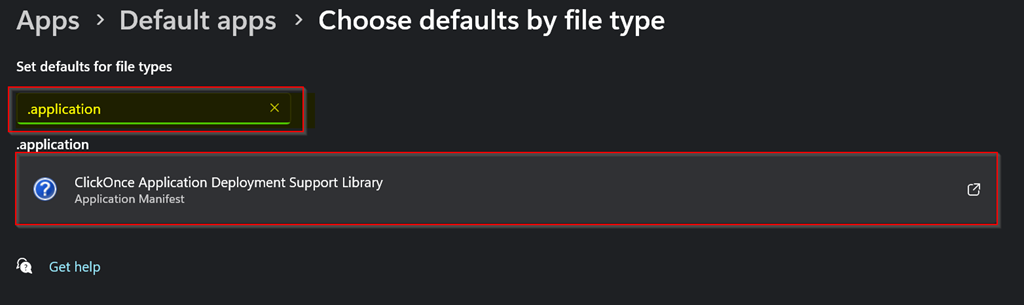
Change the association for extension .application back to Microsoft Internet Explorer IE.
Hopefully some audit security red team recommendation did not rip it out from your server OS and/or you have no GPO that blocks the usage of IE 
If htis does not solve it you need to do some other things:
CLEAN the cache:
rundll32 dfshim CleanOnlineAppCache
Re-download the wizard again:
Try to manual start the Wizard
C:\Users\%username%\AppData\Local\Apps\2.0\
HybridConfigurationWizard.application
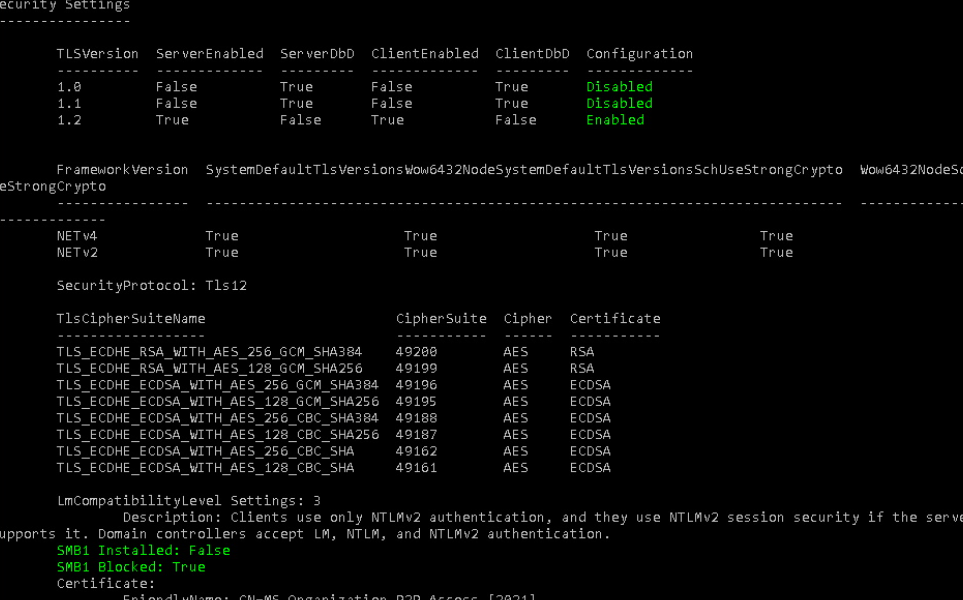
Change TLS on SRV 2016 (Warning/Attention):
If you have the Hybrid Wizard direct on Exchange Servers itself we do NOT recommend to play around with the TLS settings JUST to get the HCW running. Download and use Healtchecker.ps1 from MS if you want to change anything related to TLS or IPV6 on Exchange server it will link you to the correct KB/learn entry.
HKLM\SOFTWARE\Microsoft\.NETFramework\v4.0.30319
SystemDefaultTlsVersions = 1 (DWORD)
HKLM\SOFTWARE\Wow6432Node\Microsoft\.NETFramework\v4.0.30319
SystemDefaultTlsVersions = 1 (DWORD)
HealthChecker – Microsoft – CSS-Exchange
https://microsoft.github.io/CSS-Exchange/Diagnostics/HealthChecker/
Last step workaround from with a second extension
-
Close all the open browser windows.
-
Create an empty text file on the server and name it Temp.application.
-
Right-click Temp.applicaton, and then select Open with > Choose another app.
-
Select Notepad, select the Always use this app checkbox, and then select OK.
-
Repeat step 3, select ClickOnce Application Deployment Support Library and Always use this app and set it as the default application.
-
Delete Temp.application, reopen your browser, and then try again to open the HCW through https://aka.ms/HybridWizard. The HCW should now install and open as expected.