
Category published:  Deployment Microsoft Exchange Outlook WSUS   Click on the Category button to get more articles regarding that product.

CVE-2026-21509 | 0-day exploit mitigation Batch OF2016 + OF2019

Posted by admin on 26.01.2026

Microsoft Office Security Feature Bypass Vulnerability | How to import into WSUS Server or deploy with Intune or Autopatch

CVE-2026-21509, Security Vulnerability, Released: Jan 26, 2026, Last updated: Jan 26, 2026

Assigning CNA
Microsoft
CVE.org link
CVE-2026-21509 
Impact
Security Feature Bypass
Max Severity
Important
Weakness
CWE-807: Reliance on Untrusted Inputs in a Security Decision
CVSS Source
Microsoft
Vector String
CVSS:3.1/AV:L/AC:L/PR:N/UI:R/S:U/C:H/I:H/A:H/E:F/RL:O/RC:C
Metrics
CVSS:3.1 7.8 / 7.2


Update, 27.01.2026, 07:25

Microsoft released a Office 2016/2019 Patch you can find the 2016 here on Windows Update Katalog

kb5002713

If you don’t have a WSUS-Server internal you find the links at the end of this blog entry for Microsoft Windows Intune and one for Autopatch Deployment.

Office 2016 how to import and deploy with Windows Update Server (WSUS)

https://catalog.update.microsoft.com/home.aspx

https://catalog.update.microsoft.com/Search.aspx?q=kb5002713

To Import into WSUS you need the ImportUpdateToWSUS.ps1

Download ImportUpdateToWSUS.ps1 from here:

https://learn.microsoft.com/en-gb/windows-server/administration/windows-server-update-services/manage/wsus-and-the-catalog-site?branch=pr-4097#powershell-script-to-import-updates-into-wsus

#OFFICE 0day from 27.01.2026 Powershell ImportUpdateToWSUS.ps1. Here are two two GUID you need to import for Office 2016.

.\ImportUpdateToWSUS.ps1 -WsusServer 127.0.0.1 -PortNumber 8530 -UpdateId aa0b784a-0e0a-406b-b7c3-dbcfacb7afae
.\ImportUpdateToWSUS.ps1 -WsusServer 127.0.0.1 -PortNumber 8530 -UpdateId 58b398fd-2b6c-4086-8756-e97edf4797ff

(If you get an error try ELEVATED Powershell again or use PortNumber 8531 and -usessl option see README PS)

You MUST restart after the patch. You will see a failed Exchange connection after the installation. Reboot needed. Takes long time to install.

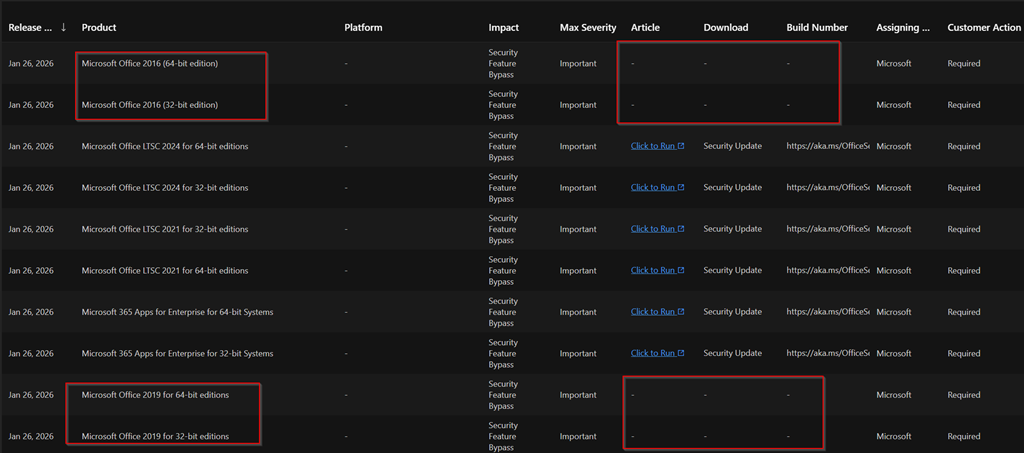
Problem 22:19 o’clock there is no Office 2016 or 2019 out-of-band-patch
Patch Status: “Forthcoming.” Microsoft has acknowledged that these versions are still vulnerable and stated that patches will be released “as soon as possible”.
The Problem: Because Office 2016 and 2019 reached their primary end-of-support date on October 14, 2025, they do not receive the same rapid service-side updates as Microsoft 365.
Urgency: The vulnerability is being actively exploited in the wild, meaning attackers are currently using it to target unpatched systems

Status 26.01.2026 MS brings only patches for enterprise LTSC first and others have to wait
image


@echo off
setlocal EnableExtensions

:: ========================================================================================================
:: V1.0, 26.01.2026, www.butsch.ch, First release because no Out-of-band-for-OF2016_OF2019
:: ========================================================================================================
:: CVE-2026-21509 Office COM Compatibility Registry Mitigation 
:: Enterprise-ready: 32/64-bit OS, 32/64-bit Office 
:: Includes elevated check 
:: Use at own risk 
:: READ: https://msrc.microsoft.com/update-guide/vulnerability/CVE-2026-21509 
:: Needs to run elevated from cmd.exe 
:: ========================================================================================================
:: Test our freeware CRLcheck.exe to automate security check of Code sign certificates and CRL + OCSP
:: ========================================================================================================
:: https://www.butsch.ch/post/crlcheck-exe-certificate-revocation-list-check-tool-to-verify-all-crl-and-ocsp-on-windows-client
:: --- Elevation check
net session >nul 2>&1
if errorlevel 1 (
    echo ERROR: Run this script as Administrator
    exit /b 1
)

:: --- CLSID and DWORD
set CLSID={EAB22AC3-30C1-11CF-A7EB-0000C05BAE0B}
set FLAG_DEC=1024
set FLAG_HEX=0x00000400

:: --- Detect Outlook.exe path safely
set "OUTLOOK32=C:\Program Files (x86)\Microsoft Office\Office16\OUTLOOK.EXE"
set "OUTLOOK64=C:\Program Files\Microsoft Office\Office16\OUTLOOK.EXE"

if exist "%OUTLOOK32%" (
    set "BASEKEY=HKLM\SOFTWARE\WOW6432Node\Microsoft\Office\16.0\Common\COM Compatibility"
    echo Detected 32-bit Outlook at "%OUTLOOK32%"
) else if exist "%OUTLOOK64%" (
    set "BASEKEY=HKLM\SOFTWARE\Microsoft\Office\16.0\Common\COM Compatibility"
    echo Detected 64-bit Outlook at "%OUTLOOK64%"
) else (
    echo ERROR: Outlook.exe not found
    exit /b 2
)

echo Target registry key: %BASEKEY%\%CLSID%

:: --- Ensure COM Compatibility base key exists
reg query "%BASEKEY%" >nul 2>&1 || (
    echo Creating COM Compatibility key...
    reg add "%BASEKEY%" /f >nul
)

:: --- Ensure CLSID key exists
reg query "%BASEKEY%\%CLSID%" >nul 2>&1 || (
    echo Creating CLSID key...
    reg add "%BASEKEY%\%CLSID%" /f >nul
)

:: --- Set Compatibility Flags
for /f "tokens=3" %%A in (
    'reg query "%BASEKEY%\%CLSID%" /v "Compatibility Flags" 2^>nul ^| find "Compatibility Flags"'
) do set CURRENT_FLAG=%%A

if "%CURRENT_FLAG%"=="%FLAG_HEX%" (
    echo Compatibility Flags already correct
) else (
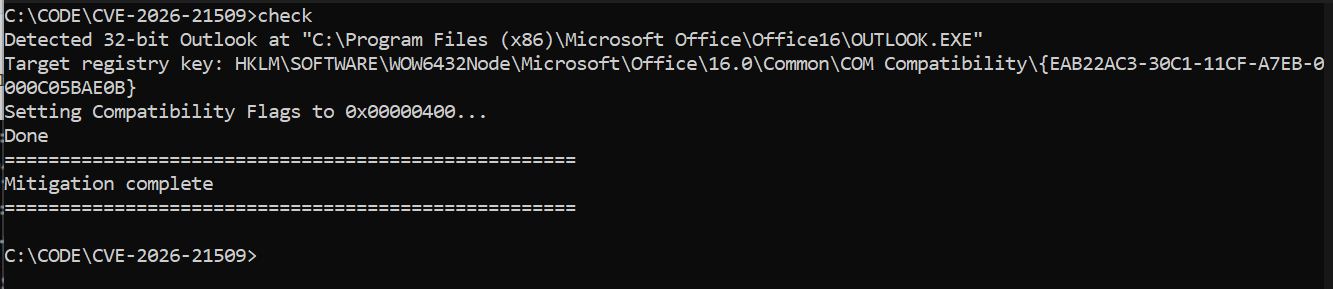
    echo Setting Compatibility Flags to %FLAG_HEX%...
    reg add "%BASEKEY%\%CLSID%" /v "Compatibility Flags" /t REG_DWORD /d %FLAG_DEC% /f >nul
    echo Done
)

echo ====================================================
echo Mitigation complete
echo ====================================================
exit /b 0

MS + CVE LINK:

https://msrc.microsoft.com/update-guide/vulnerability/CVE-2026-21509

https://www.cve.org/CVERecord?id=CVE-2026-21509

Full list of MANUAL Imports we recommend for 01-2026 January patches (Out of Band Patches for 01 2026)

# https://www.butsch.ch, 01-2026 Patch manual import for Enterprise
#OFFICE 0day from 27.01.2026
.\ImportUpdateToWSUS.ps1 -WsusServer 127.0.0.1 -PortNumber 8530 -UpdateId aa0b784a-0e0a-406b-b7c3-dbcfacb7afae
.\ImportUpdateToWSUS.ps1 -WsusServer 127.0.0.1 -PortNumber 8530 -UpdateId 58b398fd-2b6c-4086-8756-e97edf4797ff

# Windows 11 25H2 and 24H2 from 24.01.2026
.\ImportUpdateToWSUS.ps1 -WsusServer 127.0.0.1 -PortNumber 8530 -UpdateId c969c652-75b3-4ea9-a314-c69ebb26483d
.\ImportUpdateToWSUS.ps1 -WsusServer 127.0.0.1 -PortNumber 8530 -UpdateId add5ed3b-b9ce-4cb0-8b14-1e25a01e8ed7
.\ImportUpdateToWSUS.ps1 -WsusServer 127.0.0.1 -PortNumber 8530 -UpdateId 3f6df217-5070-4c9c-ae37-9878fd2bc56f
.\ImportUpdateToWSUS.ps1 -WsusServer 127.0.0.1 -PortNumber 8530 -UpdateId 7f978d98-864d-4812-a25f-e2ab8a5f2c54

# 23H2 from 24.01.2026
.\ImportUpdateToWSUS.ps1 -WsusServer 127.0.0.1 -PortNumber 8530 -UpdateId 4b9efbc3-c039-4199-9808-d60142fd6990
.\ImportUpdateToWSUS.ps1 -WsusServer 127.0.0.1 -PortNumber 8530 -UpdateId dae2527f-1cb7-4573-b759-8c9a38ba4646

# Windows 10 23H2 and 22H2 from 24.01.2026
.\ImportUpdateToWSUS.ps1 -WsusServer 127.0.0.1 -PortNumber 8530 -UpdateId eb6cb55e-9d00-455c-8e00-0a4be69d0cf7
.\ImportUpdateToWSUS.ps1 -WsusServer 127.0.0.1 -PortNumber 8530 -UpdateId 8995ef56-ca21-4c6c-8d36-1c3669c8912d
.\ImportUpdateToWSUS.ps1 -WsusServer 127.0.0.1 -PortNumber 8530 -UpdateId f73ff6ca-9fcf-4470-9c5f-4dffcfa9ac37
.\ImportUpdateToWSUS.ps1 -WsusServer 127.0.0.1 -PortNumber 8530 -UpdateId 371ca48a-4183-4956-9c18-9da50a762ffe
.\ImportUpdateToWSUS.ps1 -WsusServer 127.0.0.1 -PortNumber 8530 -UpdateId e283195c-1c50-4c55-a599-118a7b06537e
.\ImportUpdateToWSUS.ps1 -WsusServer 127.0.0.1 -PortNumber 8530 -UpdateId b304618e-79b5-4dfc-9803-2fe0b7e8829a

# SRV2022 from 24.01.2026
.\ImportUpdateToWSUS.ps1 -WsusServer 127.0.0.1 -PortNumber 8530 -UpdateId f0bc13c2-2bf2-42d0-a7a8-80fbd2ffe9ea

# SRV2025 from 24.01.2026
.\ImportUpdateToWSUS.ps1 -WsusServer 127.0.0.1 -PortNumber 8530 -UpdateId 3f0d033a-9785-4e68-99ef-8c07baeaf9be

# SRV2019 from 24.01.2026
.\ImportUpdateToWSUS.ps1 -WsusServer 127.0.0.1 -PortNumber 8530 -UpdateId b4286606-2da0-4870-b285-20b545dc1993
.\ImportUpdateToWSUS.ps1 -WsusServer 127.0.0.1 -PortNumber 8530 -UpdateId 8688338a-3c23-4991-9868-41c4b32dcc60
.\ImportUpdateToWSUS.ps1 -WsusServer 127.0.0.1 -PortNumber 8530 -UpdateId 58a7d237-7c6b-4b1c-8e6d-05b32004b6b6


Reference script:

Copy the PowerShell script to import updates into WSUS from this article into a text editor and save it as ImportUpdateToWSUS.ps1. Use a location you can easily access, such as C:\temp.

Open the Microsoft Update Catalog, https://catalog.update.microsoft.com, in a browser.

Search for an update that you want to import into WSUS.

From the returned list, select the update you want to import into WSUS. The update details page opens.

Use the Copy button on the update details page to copy the UpdateID.

The script can be used to import a single update or multiple updates.

To import multiple updates into WSUS, paste the updateIDs for each update you want to import into a text file. List one updateID per line. Save the text file when you’re done. Use a location you can easily access, such as C:\temp\UpdateIDs.txt.
To import a single update, you only need to copy the single updateID.
To import updates, open a PowerShell console as an administrator and run the script with the following syntax, using any needed parameters:

PowerShell
C:\temp\ImportUpdateToWSUS.ps1 [-WsusServer] <String> [-PortNumber] <Int32> [-UseSsl] [-UpdateId] <String> [-UpdateIdFilePath] <string> [<CommonParameters>]
Example 1: Import a single update into a WSUS server by specifying the server name and port number:

PowerShell
.\ImportUpdateToWSUS.ps1 -WsusServer WSUSServer.contoso.com -PortNumber 8530 -UpdateId 12345678-90ab-cdef-1234-567890abcdef
Example 2: Using a remote computer, import multiple updates into a WSUS server by using SSL with the following syntax:

PowerShell
.\ImportUpdateToWSUS.ps1 -WsusServer WSUSServer.contoso.com -PortNumber 8531 -UseSsl -UpdateIdFilePath C:\temp\UpdateIDs.txt
The update files for updates that are imported are downloaded based on your Update files settings. For instance, if you use the option to Download update files to this server only when updates are approved, the update files are downloaded when the update is approved. For more information about options for storing updates, see 1.3 Choose a WSUS storage strategy.


29.01.2026 Here is HOW to identify if your Office365 did the update:

  1. Navigate to %localappdata%\Microsoft\Office\16.0\WebServiceCache\AllUsers\officeclient.microsoft.com
  2. Close all instances of Office (Word, Outlook, etc.)
  3. Delete the most recent file(s) in that directory (i.e., looking for files dated 1/24/26 ~12pm PST). If you don’t have that, delete the past few days of files
  4. Restart Word
  5. Open the file (GUID format file name) with today’s date in Notepad/text editor of your choice
  6. Search for ActivationFilter and you should see this in the token list: FFDF;b;{EAB22AC3-30C1-11CF-A7EB-0000C05BAE0B}


If you want to Deploy such emergency Patch via Windows Intune here is a full manual:

Deploy an expedited quality update using Windows Autopatch – Microsoft Graph | Microsoft Learn

https://learn.microsoft.com/en-gb/graph/windowsupdates-deploy-expedited-update

If you want to Deploy such an emergency patch via Autopatch here is a full manual:

Deploy an expedited quality update using Windows Autopatch – Microsoft Graph | Microsoft Learn

https://learn.microsoft.com/en-gb/graph/windowsupdates-deploy-expedited-update


 Category published:  Deployment Microsoft Exchange Outlook WSUS   Click on the Category button to get more articles regarding that product.