 Click on the Category button to get more articles regarding that product.
Exchange Online: EWS Deprecation Timeline
Microsoft will permanently retire Exchange Web Services (EWS) in Exchange Online.
Important Dates
October 2026 → Microsoft starts globally disabling EWS for all tenants.
April 2027 → EWS fully disabled everywhere.
Important for IT Admins
Starting in 2025, admins can already manually disable EWS:
* Organization-wide
* Per user/mailbox
This should be enabled early to identify legacy applications still depending on EWS and accelerate migration to Microsoft Graph.
Recommended Action
Audit applications using EWS
Enable EWS blocking/testing in the tenant
Migrate applications to Microsoft Graph before October 2026
Microsoft Notes
The retirement urgency increased after the 2024 Midnight Blizzard security incident. Microsoft is removing EWS dependencies across products like Outlook, Teams, and Dynamics 365.
Exchange Server SE May 2026 HU: EWS Changes
Microsoft released an Exchange Server SE hotfix (HU6) adding new Microsoft Graph API support for Hybrid environments to replace legacy EWS-based functionality.
Important
* This update is required for organizations using Hybrid Exchange
* Exchange Online EWS retirement starts October 2026
* Full EWS shutdown in Exchange Online by April 2027
* Critical Detail
The new Graph-based Hybrid integration is:
* Supported only on Exchange Server SE
* NOT coming to Exchange 2016 or 2019
Organizations staying on Exchange 2016/2019 risk Hybrid feature breakage once Microsoft disables EWS in Exchange Online.
Recommendation
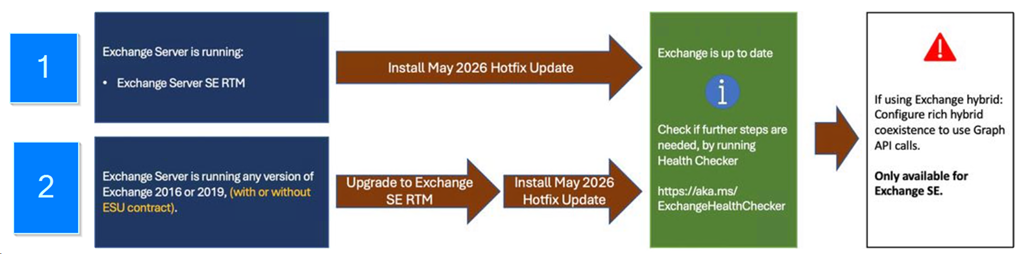
* Upgrade Hybrid environments to Exchange Server SE
* Install May 2026 HU6
* Move Hybrid communication away from EWS before October 2026
Migration paths:
How to find out which applications in your tenant still use EWS
https://learn.microsoft.com/en-us/microsoft-365/admin/activity-reports/ews-usage?view=o365-worldwide
Go to the Microsoft M365 Admin Center
- In the navigation menu, select Reports. If you don’t see Reports, select Show all, and then select Reports.
- Select Usage
- On the Usage page, under Reports, select Exchange.
- On the report page, select the EWS usage tab.
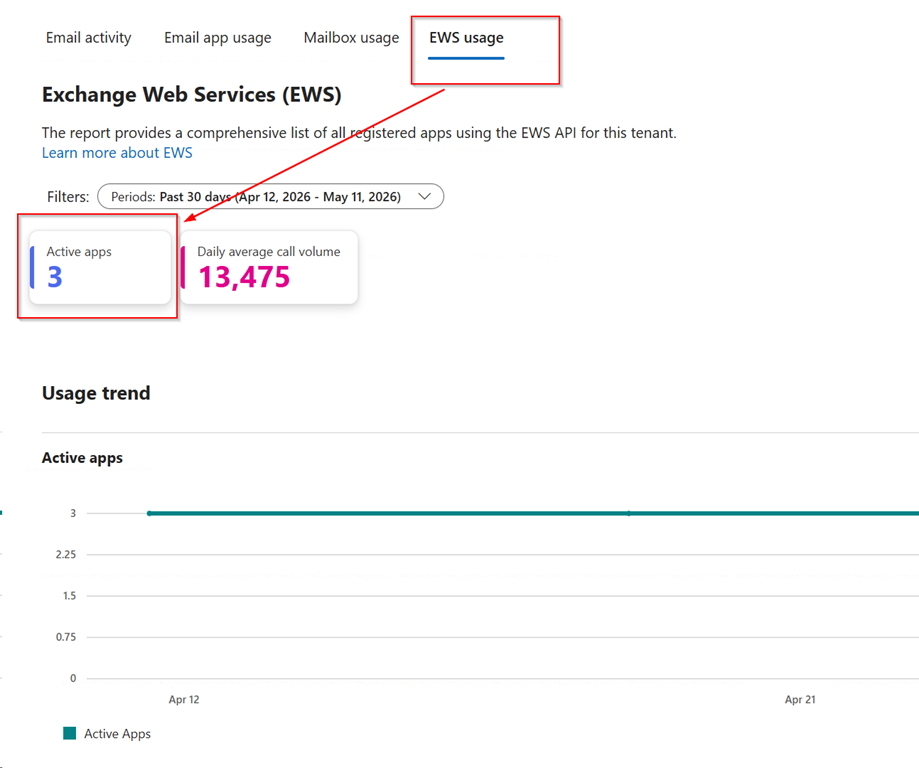
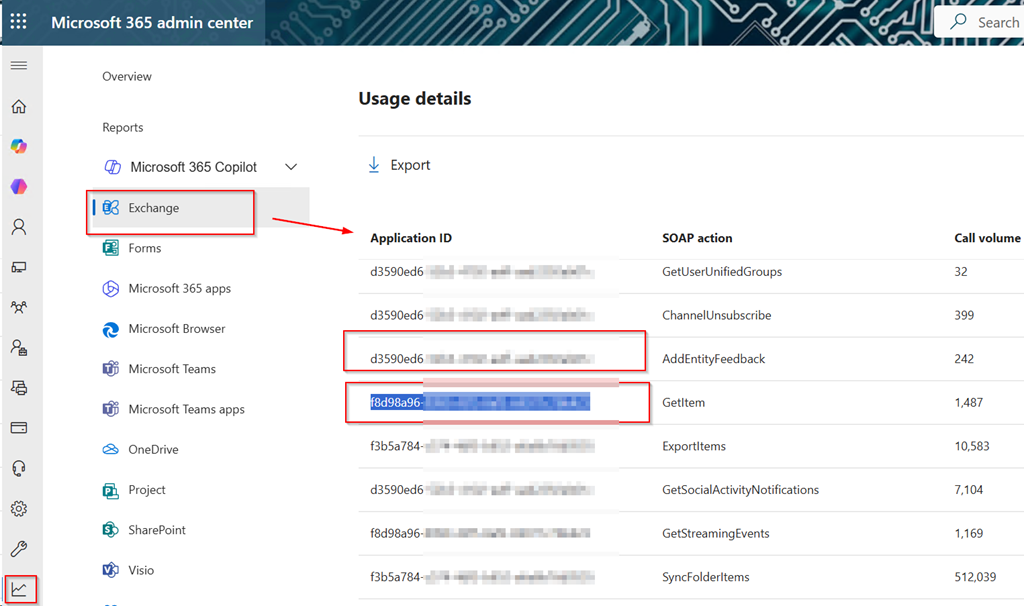
Note the application ID of the three APPS which still use EWS like “F8D98***” or “F3B5***”
- Open Microsoft Entra Admin Center
-
Go to:
Identity → Applications → Enterprise applications
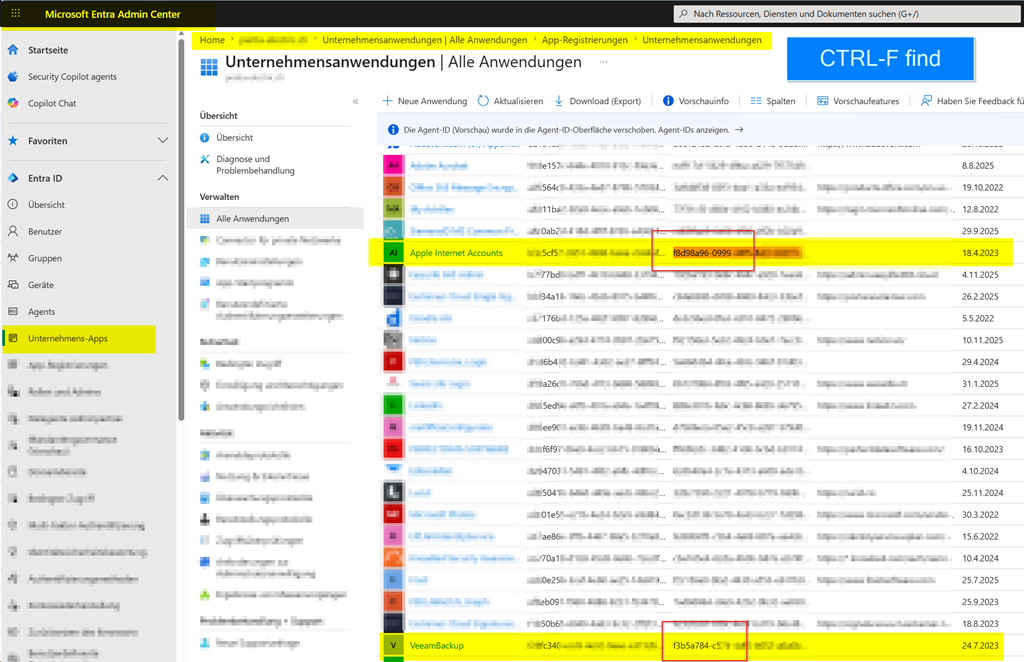
- Search for the Application ID from the EWS report
You will then see:
- Application Name
- Publisher
- Sign-in activity
- Permissions
- Users/service principals using it
This is usually enough to identify things like:
- Outlook add-ins
- CRM systems
- Backup tools
- Mobile mail apps
- Migration software
- Ticketing/helpdesk systems
- Monitoring tools