

 Click on the Category button to get more articles regarding that product.
This post handles Windows Remote Management an how to turn it on via GPO centralized for all your on-premise clients and also how to test
What we want to do:
Connect to remote PS:
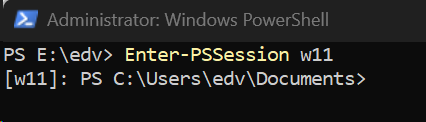
Enter-PSSession w11
Direct run a PS command on the remote machine:
Invoke-Command -ComputerName w11 { Get-Service }
To use PowerShell for remote management on Windows systems, additional configuration may be required, especially when the target systems are not running the latest PowerShell version.
Because remote PowerShell access has security implications, we recommend restricting access to trusted sources only. Ideally, WinRM access should be limited to the IP ranges of your IT administration machines and designated jump hosts.
These restrictions can be configured through the WinRM Group Policy settings and should also be enforced at the Windows Firewall level. Using both layers provides an additional level of protection and helps prevent unauthorized remote PowerShell access.
If you already have a deployment or management agent in place that allows you to execute PowerShell commands remotely through the agent, this may eliminate the need to enable direct remote PowerShell access altogether.
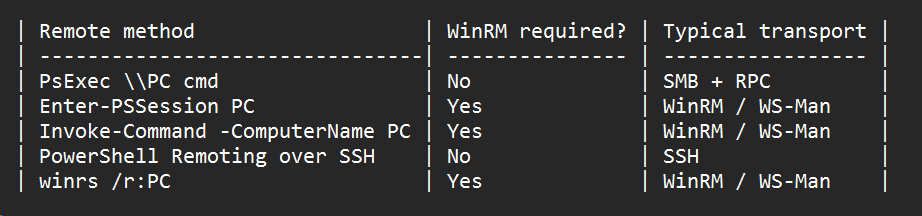
| overview of how you could connect to a remote endpoint |
 |
This post handles Windows Remote Management an how to turn it on via GPO centralized for all your on-premise clients and also how to test
- Windows PowerShell remoting over WS-Man → WinRM is required on the target.
- The WinRM service (WinRM) needs to be running/available and configured to accept remote management.
- The appropriate firewall rules must allow the connection.
- Authentication/authorization must also permit the particular connection.
- You do not necessarily need to manually run winrm quickconfig if Group Policy or another management mechanism has already configured the required settings.
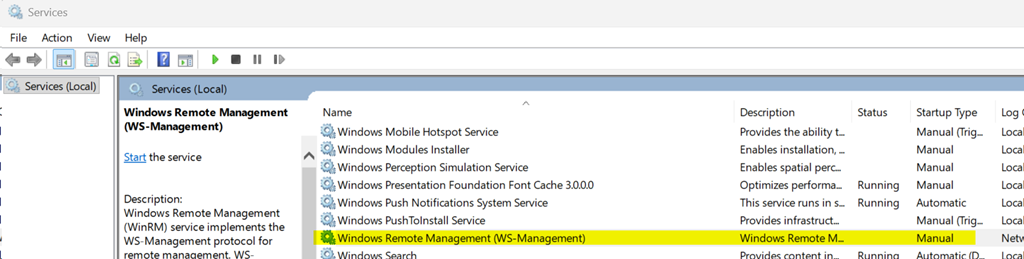
1. How to Test if WinRM is Already Working
Before changing anything, you can test if a remote client accepts these connections. Open PowerShell on your management machine and run:
powershell
Test-WSMan -ComputerName W11
| · If it fails: It will throw a connection timeout error.
Test-WSMan -ComputerName w11″ |
| Test-WSMan : <f:WSManFault xmlns:f=”http://schemas.microsoft.com/wbem/wsman/1/wsmanfault” Code=”2150858770″ Machine=”W11″><f:Message>The client cannot connect to the destination specified in the request. Verify that the service on the destination is running and is accepting requests. Consult the logs and documentation for the WS-Management service running on the destination, most commonly IIS or WinRM. If the destination is the WinRM service, run the following command on the destination to analyze and configure the WinRM service: “winrm quickconfig”. </f:Message></f:WSManFault> At line:1 char:1 + Test-WSMan -ComputerName “w11” + ~~~~~~~~~~~~~~~~~~~~~~~~~~~~~~ + CategoryInfo : InvalidOperation: (w11:String) [Test-WSMan], InvalidOperationException + FullyQualifiedErrorId : WsManError,Microsoft.WSMan.Management.TestWSManCommand |
If it succeeds: It will return details like the ProductVersion and OS Version. You are good to go!
Test-WSMan -ComputerName W11 |
||

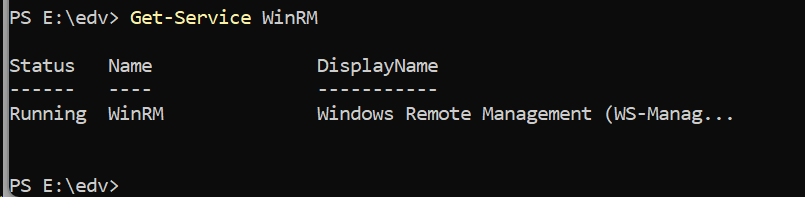
Hot to see if WSMAN is enabled on the remote machine itself Get-Service WinRM
Try to list services on remote machine Invoke-Command -ComputerName w11 {get-service}
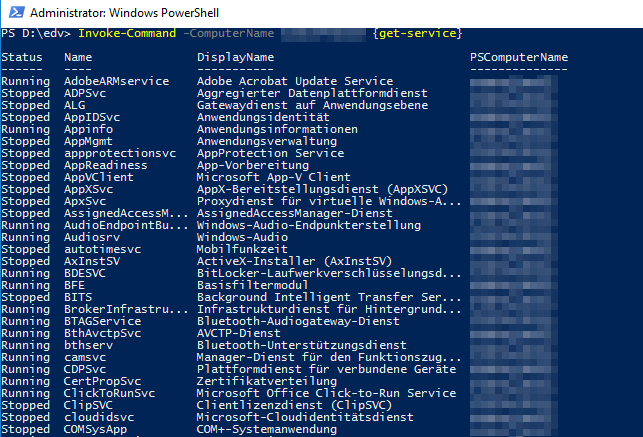 try a session with Enter-PSSession w11
Now you are on the remote machine Access is denied. For more information, see the about_Remote_Troubleshooting Help topic 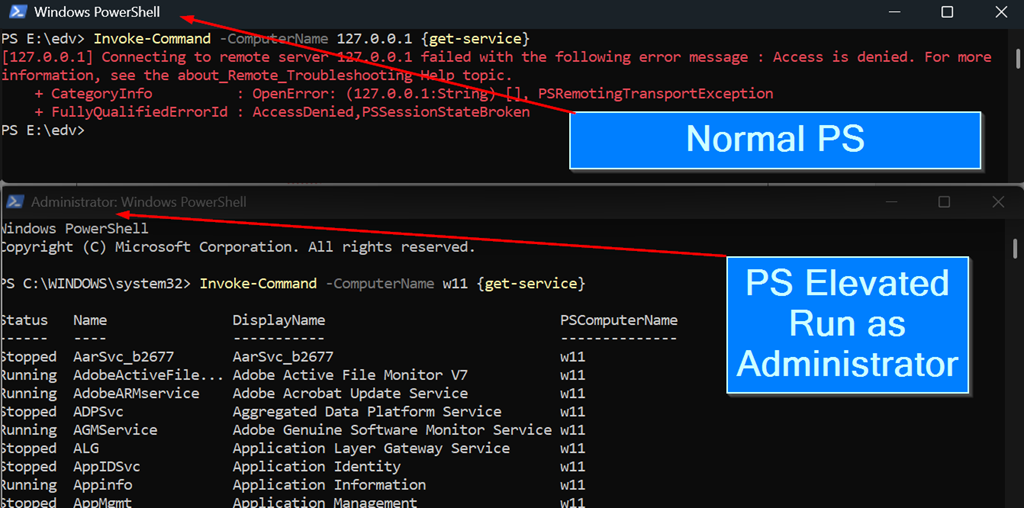
|
2. How to Enable WinRM via GPO (Recommended for Infrastructure)
Instead of going to every single laptop manually, you can use a Central Group Policy to turn on WinRM across your active fleet.
Create or edit a GPO targeted at your Computers/Laptops OU, and configure these three steps:
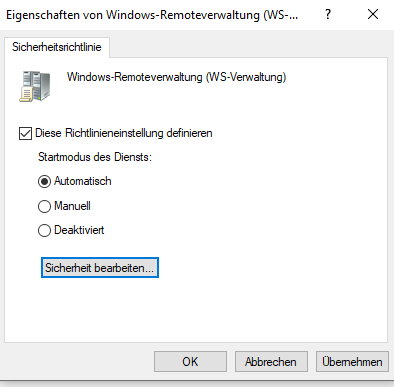
Step A: Start the WinRM Service
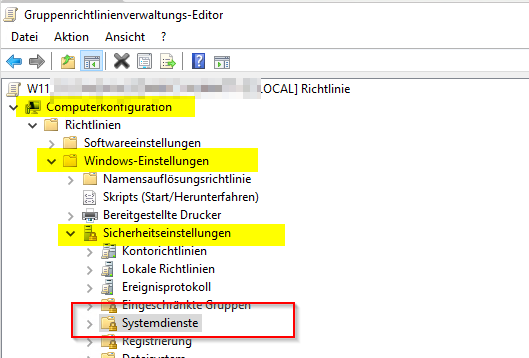
DE: Computerkonfiguration → Windows-Einstellungen → Systemdienste → Windows-Remoteverwaltung (WS-Verwaltung)
US: Computer Configuration → Windows Settings → System Services → Windows Remote Management (WS-Management)
· Action: New > Service
· Service Name: WinRM (Windows Remote Management)
· Startup Type: Automatic
· Service State: Start
Step B: Allow Remote Server Management
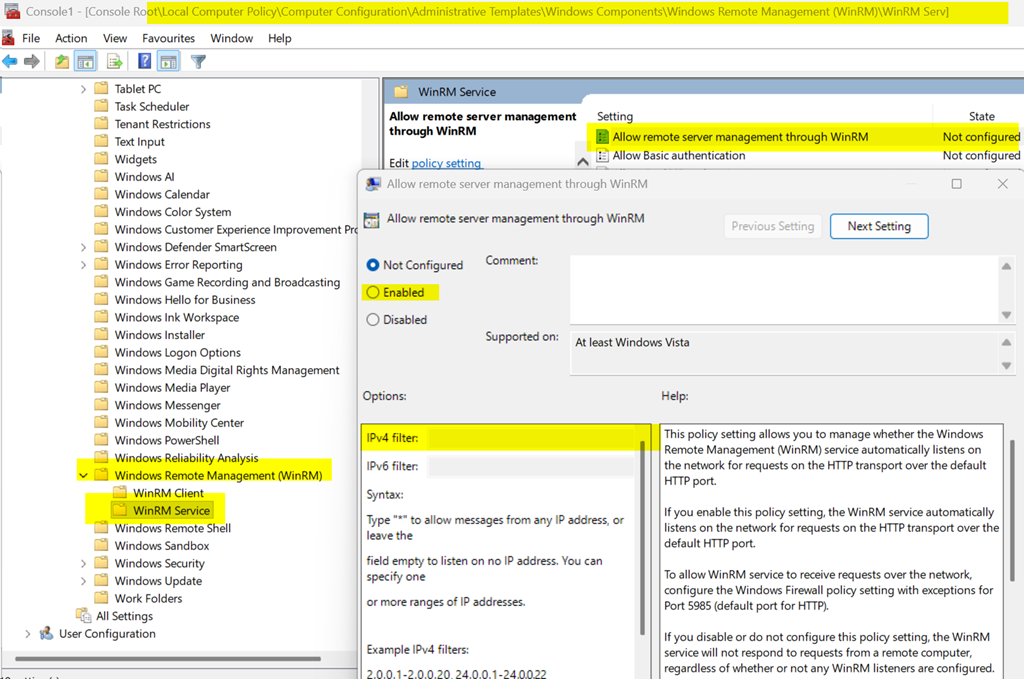
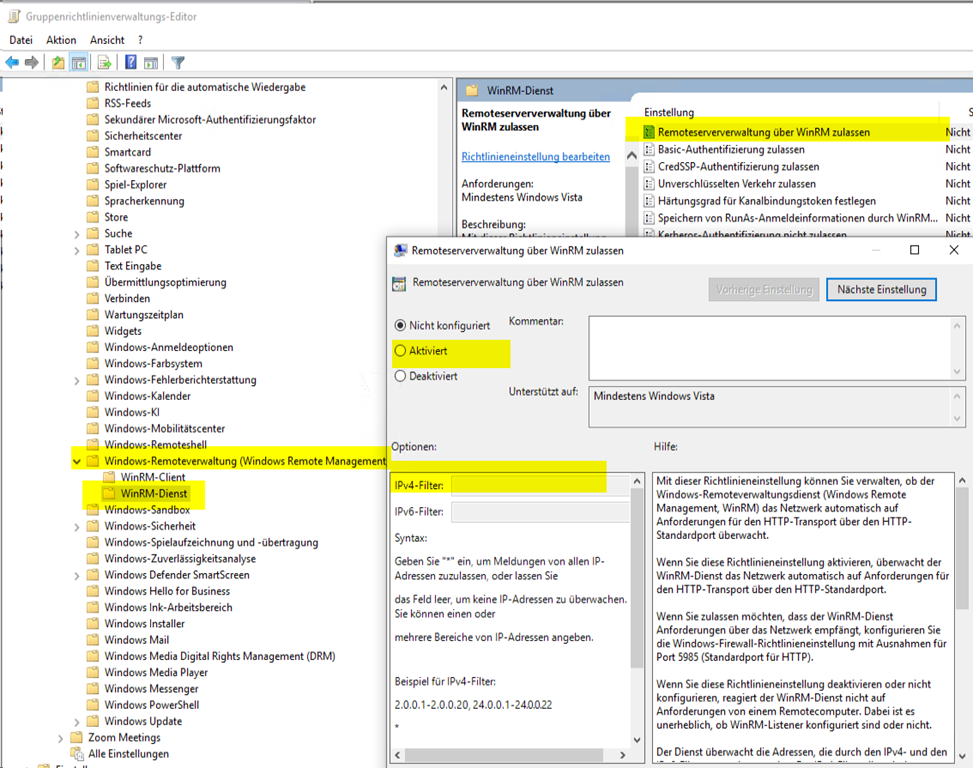
· Path: Computer Configuration > Policies > Administrative Templates > Windows Components > Windows Remote Management (WinRM) > WinRM Service
· Setting: Allow remote server management through WinRM
· State: Enabled
· IPv4 / IPv6 Filters: Type * to allow connections from any IP, or restrict it to your administrative subnet (e.g., 10.0.0.0/24).
| Settings you can change there |
| Einstellung Status Kommentar Remoteserververwaltung über WinRM zulassen Nicht konfiguriert Nein Basic-Authentifizierung zulassen Nicht konfiguriert Nein CredSSP-Authentifizierung zulassen Nicht konfiguriert Nein Unverschlüsselten Verkehr zulassen Nicht konfiguriert Nein Härtungsgrad für Kanalbindungstoken festlegen Nicht konfiguriert Nein Speichern von RunAs-Anmeldeinformationen durch WinRM nicht zulassen Nicht konfiguriert Nein Kerberos-Authentifizierung nicht zulassen Nicht konfiguriert Nein Negotiate-Authentifizierung nicht zulassen Nicht konfiguriert Nein Kompatibilitäts-HTTP-Listener aktivieren Nicht konfiguriert Nein Kompatibilitäts-HTTPS-Listener aktivieren Nicht konfiguriert Nein |
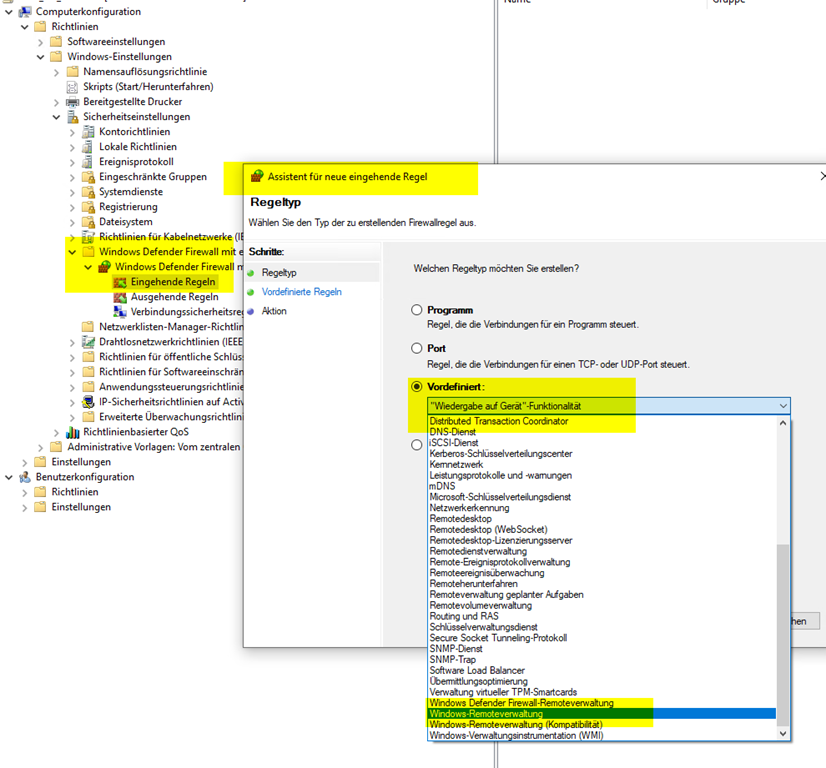
Step C: Open the Windows Firewall Ports
WinRM requires specific inbound network traffic ports to be open.
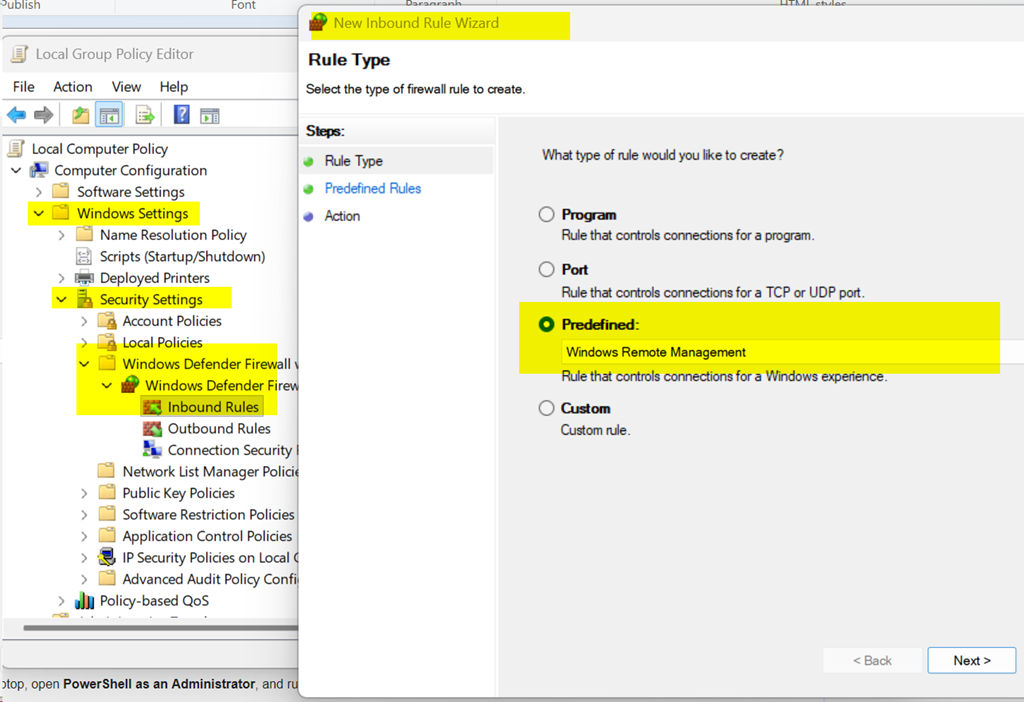
US:Computer Configuration > Policies > Windows Settings > Security Settings > Windows Defender Firewall with Advanced Security > Inbound Rules
DE: Computerkonfiguration > Richtlinien > Windows-Einstellungen > Sicherheitseinstellungen > Windows Defender Firewall mit erweiterter Sicherheit > Eingehende Regeln
· Action: New Rule > Predefined > Select Windows Remote Management
· Setting: Allow the connection for the Domain profile.
(This automatically opens Port 5985 for standard HTTP remoting).
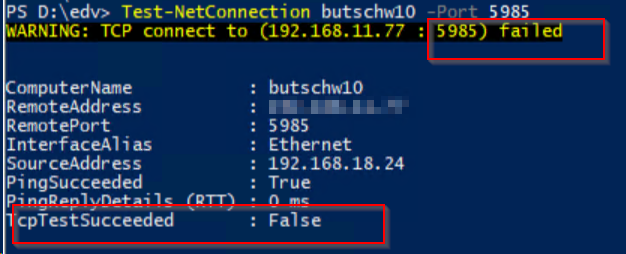
Error: Firewall test to check if Port 5985 is open to remote endpoint
If you test with as example and it fails: Test-WSMan -ComputerName “butschw10″
He will tell you to watch for correct open ports.
Test-WSMan : <f:WSManFault xmlns:f=”http://schemas.microsoft.com/wbem/wsman/1/wsmanfault” Code=”2150859046″
Machine=”myitmachine”><f:Message>WinRM cannot complete the operation. Verify that the specified computer
name is valid, that the computer is accessible over the network, and that a firewall exception for the WinRM service
is enabled and allows access from this computer. By default, the WinRM firewall exception for public profiles limits
access to remote computers within the same local subnet. </f:Message></f:WSManFault>
At line:1 char:1
+ Test-WSMan -ComputerName “butschw10”
+ ~~~~~~~~~~~~~~~~~~~~~~~~~~~~~~~~~~~~
+ CategoryInfo : InvalidOperation: (butschw10:String) [Test-WSMan], InvalidOperationException
+ FullyQualifiedErrorId : WsManError,Microsoft.WSMan.Management.TestWSManCommand
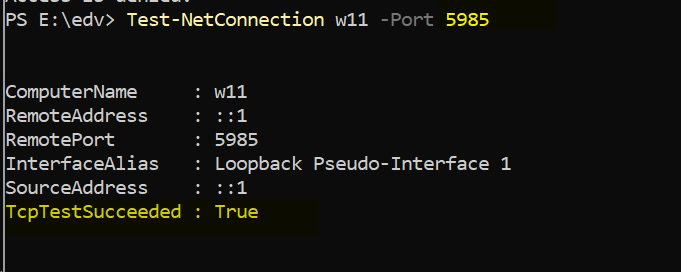
Test if the Firewall Port for Remote Management is open to your target with
Test-NetConnection butschw10 -Port 5985
3. How to Enable WinRM Manually (For Quick Testing on a Single PC)
If you just want to test the blog’s script on one or two test machines right away, you can enable it locally on those devices.
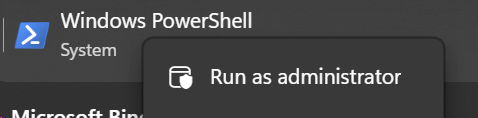
Log onto the target laptop, open PowerShell as an Administrator, and run:
powershell
Enable-PSRemoting -Force
Use code with caution.
This single command automatically starts the service, configures the startup type to automatic, and creates the required local firewall rules for you.
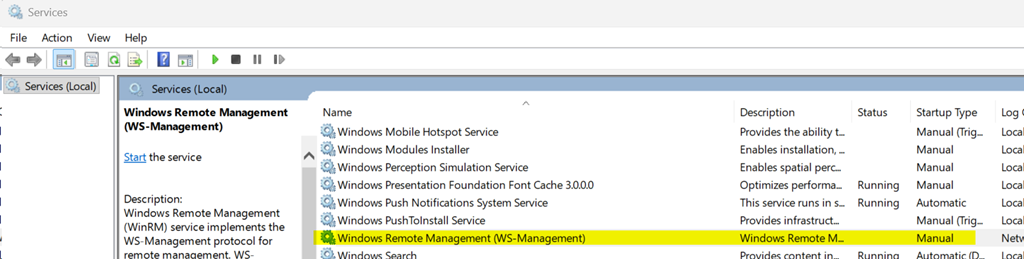
Get-Service WinRM | fl
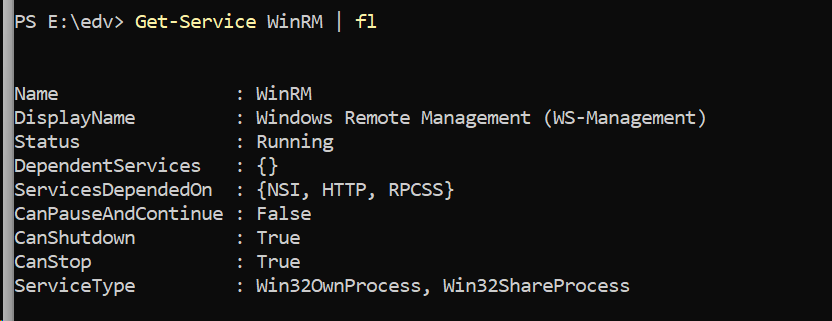
You can slso use those commands from the learn article if you dont’ like the manual steps.
To configure WinRM with default settings
At a command prompt running as the local computer Administrator account, run this command:
winrm quickconfig

If you're not running as the local computer Administrator, then either select Run as Administrator from the Start menu, or use the Runas command at a command prompt.
When the tool displays Make these changes [y/n]?, type y.
If configuration is successful, then the following output is displayed.
Output
WinRM has been updated for remote management.
WinRM service type changed to delayed auto start.
WinRM service started.
Created a WinRM listener on https://* to accept WS-Man requests to any IP on this machine.
Important if you want to enable it with local policy on W11:
On a Windows 11 25H2 machine, when you open gpedit.msc → Computer Configuration → Policies → Windows Settings → Security Settings, there is no System Services node in the Local Group Policy Editor.
Links Installation and configuration for Windows Remote Management
https://learn.microsoft.com/en-us/windows/win32/winrm/about-windows-remote-management