

 Click on the Category button to get more articles regarding that product.
OneDrive, SharePoint, Wenig Speicherplatz, You don’t have enough free space in your OneDrive how to check GPO
Or where M365 cloud technology meets on-premises GPO.
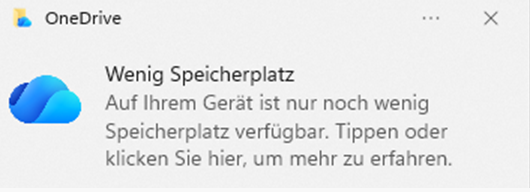
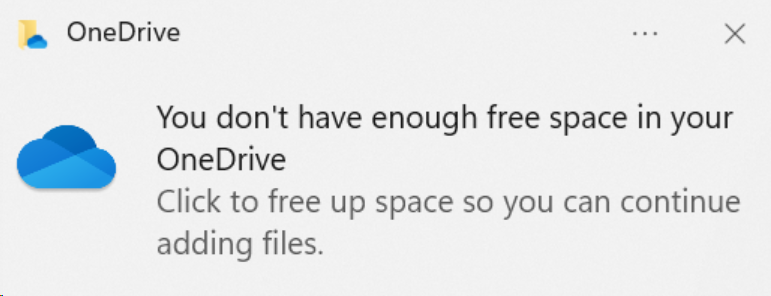
points to check:
- Check local free space of laptop
- Check if the user has hit a sharepoint OneDrive Quota online with PS in M365
- Check if there is a GPO policy that sets warning or/and block limits in GB
- Educate users so they understand (See the last section of the blog post)
First we check if the laptop has space. The laptop01 from user01 has 65GB free. His local OneDrive Cache is 14GB but looks fine.
So let us check what user1 from customer.ch is doing wrong or IT does wrong.
Let us check some things M365 tenant side. Try to connect and if not install some module.
Connect-SPOService -Url "https://customer-admin.sharepoint.com"
Error:
Connect-SPOService : Die Benennung “Connect-SPOService” wurde nicht als Name eines Cmdlet, einer Funktion, einer Skriptdatei oder eines ausführbaren Programms erkannt. Überprüfen Sie die Schreibweise des Namens, oder ob der Pfad korrekt ist (sofern enthalten), und wiederholen Sie den Vorgang. In Zeile:1 Zeichen:1 + Connect-SPOService -Url “https://customer.sharepoint.com” CategoryInfo : ObjectNotFound: (Connect-SPOService:String) [], CommandNotFoundException FullyQualifiedErrorId : CommandNotFoundException
If warning above install install the SharePoint PS module under your scope user account
Install-Module Microsoft.Online.SharePoint.PowerShell -Scope CurrentUser
Nicht vertrauenswürdiges Repository Sie installieren die Module aus einem nicht vertrauenswürdigen Repository. Wenn Sie diesem Repository vertrauen, ändern Sie dessen InstallationPolicy-Wert, indem Sie das Set-PSRepository-Cmdlet ausführen. Möchten Sie die Module von ‘PSGallery’ wirklich installieren? [J] Ja [A] Ja, alle [N] Nein [K] Nein, keine [H] Anhalten [?] Hilfe (Standard ist “N”): j
Let us get an overview so we don’t have 2000 sites there and do things other don’t like, just how big the Sharepoint setup is
Get-SPOSite -Limit All |  Select StorageUsageCurrent, Url |  Sort-Object StorageUsageCurrent -Descending |  Select-Object -First 30

StorageUsageCurrent Url
------------------- ---
              29303 https://customer.sharepoint.com/sites/Cafe
              10412 https://customer.sharepoint.com/sites/Projekteintemp
               9606 https://customer.sharepoint.com/sites/Links
               2279 https://customer.sharepoint.com/sites/Projekt
                949 https://customer.sharepoint.com/sites/Sante
                631 https://customer.sharepoint.com/sites/Kunde
                350 https://customer.sharepoint.com/sites/Aktivsal
                270 https://customer.sharepoint.com/sites/Service
                207 https://customer.sharepoint.com/sites/Ost
                202 https://customer.sharepoint.com/sites/Hausdienst
                145 https://customer.sharepoint.com/sites/IT
List storage quota from all users in Sharepoint
Get-SPOSite -IncludePersonalSite $true -Limit All |  Select Owner, Url, StorageUsageCurrent, StorageQuota, StorageQuotaType

Owner               :
Url                 : https://customer.sharepoint.com/sites/user4
StorageUsageCurrent : 147
StorageQuota        : 26214400
StorageQuotaType    :

Owner               : user1@customer.ch
Url                 : https://customer.sharepoint.com/personal/user1
StorageUsageCurrent : 29
StorageQuota        : 1048576
StorageQuotaType    :

Owner               :
Url                 : https://customer.sharepoint.com/sites/user5
StorageUsageCurrent : 1
StorageQuota        : 26214400
StorageQuotaType    :
Check single user01
Get-SPOSite -Identity "https://customer.sharepoint.com/personal/user1_customer_ch" |  Select Url, StorageUsageCurrent, StorageQuota, StorageQuotaType, LockState

Url                 : https://customer.sharepoint.com/personal/user1
StorageUsageCurrent : 29
StorageQuota        : 1048576
StorageQuotaType    : Default
LockState           : Unlock
This all looks normal the user has a StorageUsageCurrent 29 and StorageQuota is 1048576.
So let us check the laptop the M365 user has “laptop01”
Invoke-Command -ComputerName "laptop01" -ScriptBlock {
    Get-CimInstance Win32_UserProfile |
        Where-Object { $_.LocalPath -like "C:\Users\*" } |
        Select-Object LocalPath, SID, Loaded
}


LocalPath      : C:\Users\deutscheradminkopiertgpo
SID            : S-1-5-21-6977092438-222634067-1652573912-4846
Loaded         : False
PSComputerName : laptop01
RunspaceId     : 82b51d52-d280-4a1f-99fc-31ea3e7f126e

LocalPath      : C:\Users\user01
SID            : S-1-5-21-2977092438-222634067-1652573912-4234
Loaded         : True < User is logged on and active
PSComputerName : laptop01
RunspaceId     : 82b51d52-d280-4a1f-99fc-31ea3e7f126e
We found the SID from user01
LocalPath : C:\Users\user01
SID : S-1-5-21-2977092438-222634067-1652573912-4234
Loaded : True < User is logged on and active
Let us check his OneDrive in his HKCU remote Registry. That means we connect with PS remote to his laptop from a management server we have access with PS. If you want to access the registry reote you would have to enable
remote-registry on the machine first. Computer Management/Computer Verwaltung, Connect to other computer > Service > Enable/Start Remote-Registry Server.
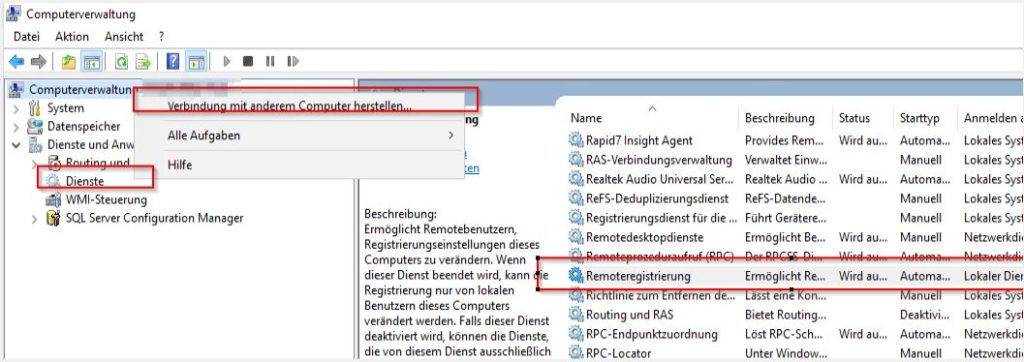
Open registry from remote machine
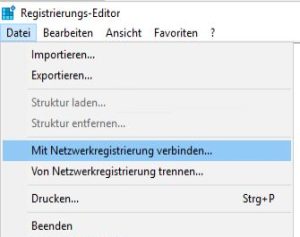
remote machine HKEY_USERS\S-1-5-21-2977092438-222634067-1652573912-4234\Software\Microsoft\OneDrive
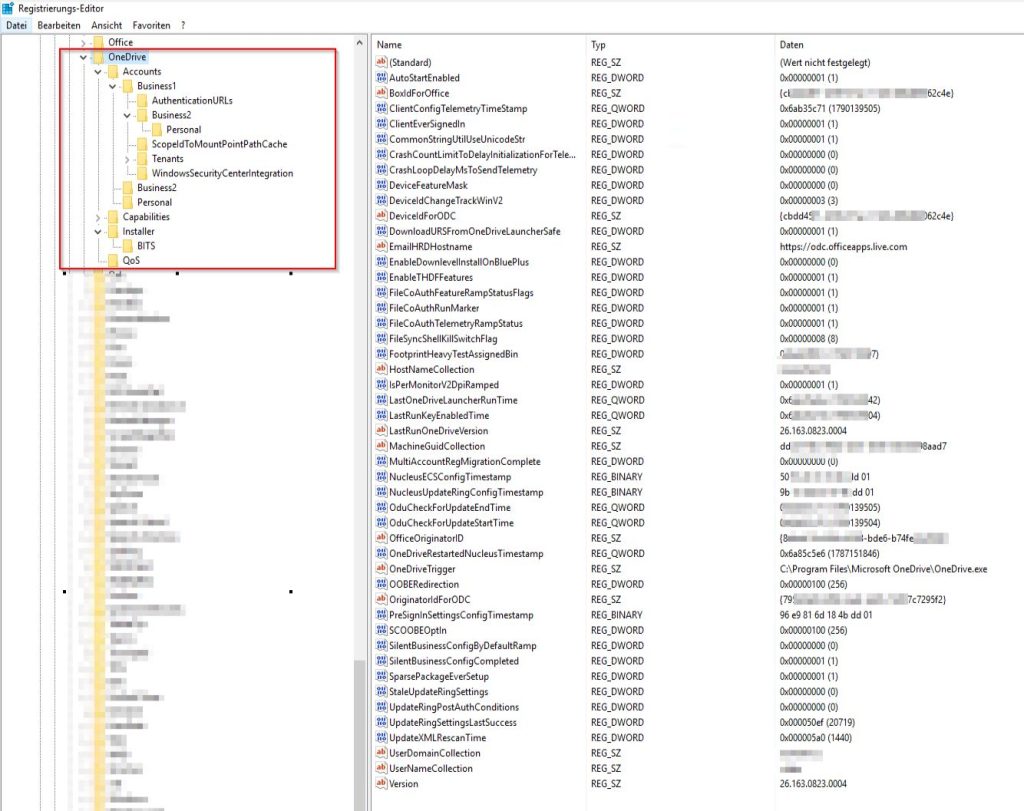
Or with PS
SID : S-1-5-21-2977092438-222634067-1652573912-4234
Invoke-Command -ComputerName "laptop01" -ScriptBlock {
    $sid = "S-1-5-21-2977092438-222634067-1652573912-4234"

    Get-ItemProperty "Registry::HKEY_USERS\$sid\Software\Microsoft\OneDrive" |
        Format-List *
}

EnableDownlevelInstallOnBluePlus                 : 0
EnableTHDFFeatures                               : 1
Version                                          : 26.163.0823.0004
MultiAccountRegMigrationComplete                 : 0
OneDriveTrigger                                  : C:\Program Files\Microsoft OneDrive\OneDrive.exe
SCOOBEOptIn                                      : 256
LastRunOneDriveVersion                           : 26.163.0823.0004
PreSignInSettingsConfigTimestamp                 : {150, 233, 129, 109...}
UpdateRingSettingsLastSuccess                    : 20719
FileSyncShellKillSwitchFlag                      : 8
OOBERedirection                                  : 256
FileCoAuthTelemetryRampStatus                    : 1
FileCoAuthFeatureRampStatusFlags                 : 1
ClientConfigTelemetryTimeStamp                   : 1720159505
UpdateXMLRescanTime                              : 1440
SilentBusinessConfigByDefaultRamp                : 0
MachineGuidCollection                            : ddc01xxxx98aad7
HostNameCollection                               : laptop01
UserNameCollection                               : user01
UserDomainCollection                             : customer
EmailHRDHostname                                 : https://odc.officeapps.live.com
CrashCountLimitToDelayInitializationForTelemetry : 0
CrashLoopDelayMsToSendTelemetry                  : 0
DeviceIdChangeTrackWinV2                         : 3
SilentBusinessConfigCompleted                    : 1
NucleusUpdateRingConfigTimestamp                 : {155, 114, 221, 51...}
DeviceIdForODC                                   : {cbdxxxxxdb9062c4e}
OriginatorIdForODC                               : {795bxxxxxc7295f2}
BoxIdForOffice                                   : {cbddxxxxx32c4e}
OfficeOriginatorID                               : {8e4exxxxxee64af}
UpdateRingPostAuthConditions                     : 0
ClientEverSignedIn                               : 1
SparsePackageEverSetup                           : 1
FootprintHeavyTestAssignedBin                    : 1790178897
OduCheckForUpdateStartTime                       : 1390139504
OduCheckForUpdateEndTime                         : 1390139505
AutoStartEnabled                                 : 1
LastRunKeyEnabledTime                            : 1390139504
CommonStringUtilUseUnicodeStr                    : 1
DownloadURSFromOneDriveLauncherSafe              : 1
OneDriveRestartedNucleusTimestamp                : 1387151846
LastOneDriveLauncherRunTime                      : 1390140042
DeviceFeatureMask                                : 0
NucleusECSConfigTimestamp                        : {80, 243, 230, 51...}
IsPerMonitorV2DpiRamped                          : 1
StaleUpdateRingSettings                          : 0
FileCoAuthRunMarker                              : 1
PSPath                                           : Microsoft.PowerShell.Core\Registry::HKEY_USERS\S-1-5-21-2977092438-2
                                                   22634067-1652573912-4234\Software\Microsoft\OneDrive
PSParentPath                                     : Microsoft.PowerShell.Core\Registry::HKEY_USERS\S-1-5-21-2977092438-2
                                                   22634067-1652573912-4234\Software\Microsoft
PSChildName                                      : OneDrive
PSProvider                                       : Microsoft.PowerShell.Core\Registry
Does the user have many OneDrive accounts? He he using as example one business and some private or from third party company they work with?
Let us check: HKEY_USERS\$sid\Software\Microsoft\OneDrive\Accounts
You wont get smarter for the Registry? Because the Business2 is UNDER the Business1 and also another times separate as Business2 same hierarchies as Business1
remote machine HKEY_USERS\S-1-5-21-2977092438-222634067-1652573912-4234\Software\Microsoft\OneDrive\Accounts
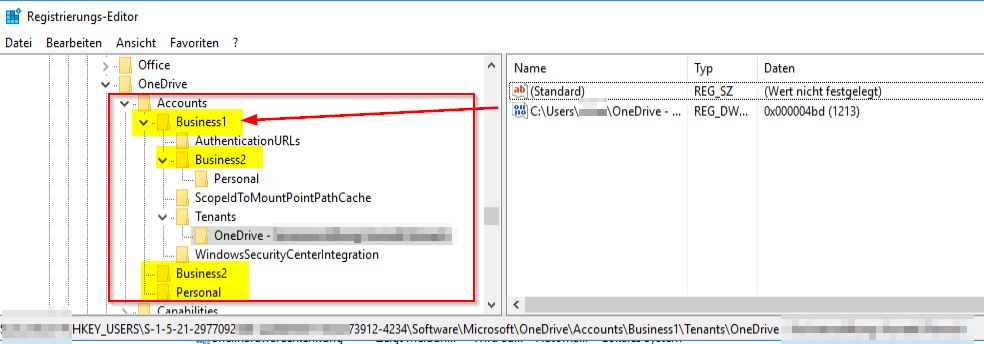
Same with PS
Invoke-Command -ComputerName "laptop01" -ScriptBlock {
    $sid = "S-1-5-21-2977092438-222634067-1652573912-4234"

    Get-ChildItem "Registry::HKEY_USERS\$sid\Software\Microsoft\OneDrive\Accounts" |
        Select-Object PSChildName
}

SChildName PSComputerName RunspaceId
---------- -------------- ----------
Business1   laptop01   ebb59589-10da-449f-5e52-4178f0902ef5
Business2   laptop01   ebb59589-10da-449f-5e52-4178f0902ef5
Personal    laptop01   ebb59589-10da-449f-5e52-4178f0902ef5
Invoke-Command -ComputerName "laptop01" -ScriptBlock {
    $sid = "S-1-5-21-2977092438-222634067-1652573912-4234"

    foreach ($account in "Business1","Business2","Personal") {
        $path = "Registry::HKEY_USERS\$sid\Software\Microsoft\OneDrive\Accounts\$account"

        if (Test-Path $path) {
            Write-Host "`n========== $account ==========" -ForegroundColor Cyan

            Get-ItemProperty $path |
                Select-Object UserEmail, UserFolder, DisplayName
        }
    }
}

========== Business1 ==========


UserEmail            : user01@customer.ch
UserFolder           : C:\Users\user01\OneDrive - Customer Business Unit CH
DisplayName          : Customer Business Unit CH
TenantId             :
TenantName           :
LastKnownUserFolder  :
FilesOnDemandEnabled :
StorageQuota         :
StorageUsed          :
PSComputerName       : laptop01
RunspaceId           : 7881b40f-743c8-4447c-a482-d1d44f9b7e73b


========== Business2 ==========
UserEmail            :
UserFolder           :
DisplayName          :
TenantId             :
TenantName           :
LastKnownUserFolder  :
FilesOnDemandEnabled :
StorageQuota         :
StorageUsed          :
PSComputerName       : laptop01
RunspaceId           : 7881b440f-74c48-447c-a482-d1d444f9b7e73b


========== Personal ==========
UserEmail            :
UserFolder           :
DisplayName          :
TenantId             :
TenantName           :
LastKnownUserFolder  :
FilesOnDemandEnabled :
StorageQuota         :
StorageUsed          :
PSComputerName       : laptop01
RunspaceId           : 7881b440f-74c8-447c-a482-d1d4f449b7e73b
Looks like he is only using ========== Business1 ========== active and is in sync to his laptop. Regarding space and quota that is what we need to know.
From the M365 side everything looks normal and is NOT the source.
Let us just if the user and machine gets a policy which does anything we don’t want.
Invoke-Command -ComputerName "laptop01" -ScriptBlock {
    $sid = "S-1-5-21-2977092438-222634067-1652573912-4234"

    $paths = @(
        "Registry::HKEY_LOCAL_MACHINE\SOFTWARE\Policies\Microsoft\OneDrive",
        "Registry::HKEY_USERS\$sid\Software\Policies\Microsoft\OneDrive"
    )

    foreach ($path in $paths) {
        if (Test-Path $path) {
            Write-Host "`n=== $path ===" -ForegroundColor Cyan
            Get-ItemProperty $path | Format-List *
        }
    }
}


=== Registry::HKEY_LOCAL_MACHINE\SOFTWARE\Policies\Microsoft\OneDrive ===


BlockExternalSync                  : 1
PermitDisablePermissionInheritance : 0
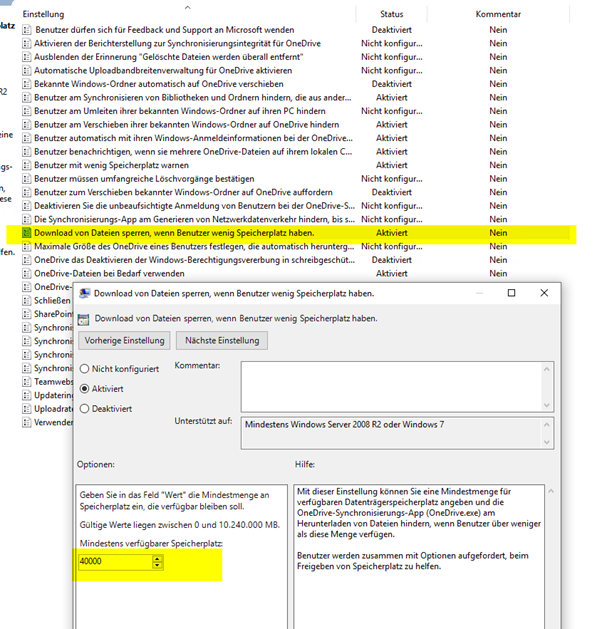
MinDiskSpaceLimitInMB              : 40000
EnableSendFeedback                 : 0
EnableSurveyCampaigns              : 0
EnableContactSupport               : 0
KFMSilentOptInDesktop              : 0
KFMSilentOptInDocuments            : 0
KFMSilentOptInPictures             : 0
KFMBlockOptIn                      : 2
SilentAccountConfig                : 1
FilesOnDemandEnabled               : 1
LocalMassDeleteFileDeleteThreshold : 20
WarningMinDiskSpaceLimitInMB       : 80000
PSPath                             : Microsoft.PowerShell.Core\Registry::HKEY_LOCAL_MACHINE\SOFTWARE\Policies\Microsoft\OneDrive
PSParentPath                       : Microsoft.PowerShell.Core\Registry::HKEY_LOCAL_MACHINE\SOFTWARE\Policies\Microsoft
PSChildName                        : OneDrive
PSProvider                         : Microsoft.PowerShell.Core\Registry
Solution > We found the cause
MinDiskSpaceLimitInMB        : 40000
WarningMinDiskSpaceLimitInMB : 80000- 40,000 MB (~40 GB) = minimum disk space threshold
- 80,000 MB (~80 GB) = warning threshold
- Her laptop has only ~65 GB free
- Therefore OneDrive sees 65 GB < 80 GB warning threshold and displays “Wenig Speicherplatz auf Ihrem Gerät”.
So nothing is actually full.
The warning is being triggered by your organization’s OneDrive policy. 😉
Let us find the GPO which some guy copied over from another customer and did not check the client fleet and type before activation.
GPO side check there is a W11_CU_OneDrive (Nice done with C and U part visible in naming so we know it is a Computer and User Policy in one.
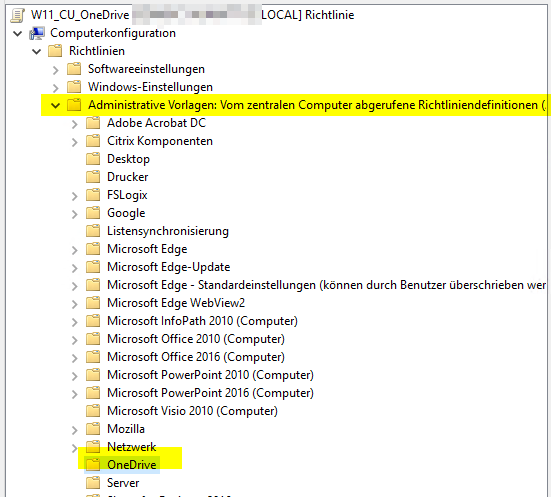
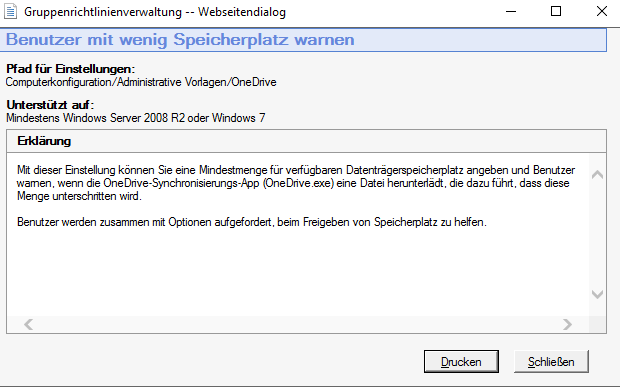
Warn users who are low on disk space
Applies to: Group Policy, Intune
This setting lets you specify a minimum amount of available disk space, and warn users when the OneDrive sync app (OneDrive.exe) downloads a file that causes them to have less than this amount. Users are prompted with options to help free up space.
Enabling this policy sets the following registry key value to a number from 0 through 10240000:
[HKLM\SOFTWARE\Policies\Microsoft\OneDrive] "WarningMinDiskSpaceLimitInMB"=dword:00000000
Computerkonfiguration >RichtlinienAusblenden > Administrative Vorlagen > OneDrive > Benutzer mit wenig Speicherplatz warnen
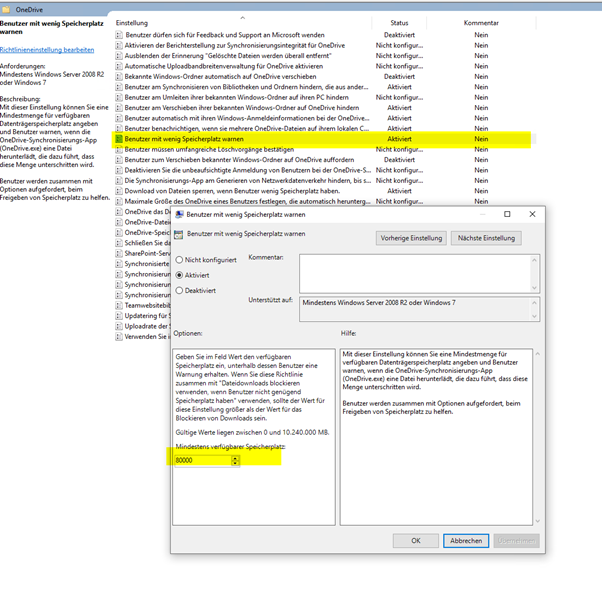
Testing:
You can temporary for testing try to override the values he get’s from GPO during the LOGON or REBOOT of the client. Because it is a HLKM this would be reset on next restart of client.
# Set the hard block  lower (e.g., 6 GB)
Set-ItemProperty -Path "HKLM:\SOFTWARE\Policies\Microsoft\OneDrive" -Name "MinDiskSpaceLimitInMB" -Value 6000

# Set the warning  lower (e.g., 15 GB) or delete the value
Set-ItemProperty -Path "HKLM:\SOFTWARE\Policies\Microsoft\OneDrive" -Name "WarningMinDiskSpaceLimitInMB" -Value 15000
PS Script to check some clients on your network and if they have reached the LIMIT or a GPO set right now live:
onedrive.ps1
<#
www.butsch.ch, OneDrive, Wenig Speicherplatz, You dont have enough free space, GPO and Sharepoint
.SYNOPSIS
    Queries remote computers to find OneDrive GPO disk space mismatches.
.DESCRIPTION
    Checks actual C: drive free space against the 'WarningMinDiskSpaceLimitInMB'
    registry key configured by Group Policy/Intune.
#>


$Computers = @("w11", "laptop02") # The script also safely handles your local computer name

$RegPath = "SOFTWARE\Policies\Microsoft\OneDrive"
$WarningValueName = "WarningMinDiskSpaceLimitInMB"
$MinSpaceValueName = "MinDiskSpaceLimitInMB"

$Report = foreach ($Computer in $Computers) {
    $Output = [PSCustomObject]@{
        ComputerName          = $Computer
        Online                = $false
        FreeSpaceGB           = 0
        GPOWarningThresholdGB = "Not Configured"
        GPOMinThresholdGB     = "Not Configured"
        Status                = "Unknown"
    }

    # Identify if the target is the local machine to bypass WinRM network errors
    $IsLocal = ($Computer -eq "localhost") -or ($Computer -eq "127.0.0.1") -or ($Computer -eq $env:COMPUTERNAME)

    # 1. Connectivity Check
    if (-not $IsLocal -and -not (Test-Connection -ComputerName $Computer -Count 1 -Quiet)) {
        $Output.Status = "Offline"
        $Output
        continue
    }
    $Output.Online = $true

    try {
        # 2. Gather Storage Space (Local vs. Remote)
        if ($IsLocal) {
            $Disks = Get-CimInstance -ClassName Win32_LogicalDisk -Filter "DeviceID='C:'"
        } else {
            $CimSession = New-CimSession -ComputerName $Computer -ErrorAction Stop
            $Disks = Get-CimInstance -ClassName Win32_LogicalDisk -Filter "DeviceID='C:'" -CimSession $CimSession
        }

        $FreeBytes = $Disks.FreeSpace
        $FreeGB = [math]::Round($FreeBytes / 1GB, 2)
        $Output.FreeSpaceGB = $FreeGB

        # 3. Open Registry (Local vs. Remote)
        if ($IsLocal) {
            $Reg = [Microsoft.Win32.Registry]::LocalMachine
        } else {
            $Reg = [Microsoft.Win32.RegistryKey]::OpenRemoteBaseKey([Microsoft.Win32.RegistryHive]::LocalMachine, $Computer)
        }

        $Key = $Reg.OpenSubKey($RegPath)

        if ($Key) {
            $WarnVal = $Key.GetValue($WarningValueName)
            $MinVal = $Key.GetValue($MinSpaceValueName)

            if ($WarnVal -ne $null) { $Output.GPOWarningThresholdGB = [math]::Round($WarnVal / 1024, 2) }
            if ($MinVal -ne $null) { $Output.GPOMinThresholdGB = [math]::Round($MinVal / 1024, 2) }

            # 4. Evaluate Mismatch
            if ($WarnVal -and ($FreeBytes / 1MB) -lt $WarnVal) {
                $Output.Status = "WARNING MISMATCH: Falsely Flagging Error"
            } elseif ($MinVal -and ($FreeBytes / 1MB) -lt $MinVal) {
                $Output.Status = "ERROR CRITICAL: OneDrive Blocked"
            } else {
                $Output.Status = "OK Healthy"
            }
        } else {
            $Output.Status = "OK Healthy (No GPO applied)"
        }

        if ($Key) { $Key.Close() }
        if (-not $IsLocal) {
            $Reg.Close()
            Remove-CimSession $CimSession
        }
    }
    catch {
        $Output.Status = "Error: $($_.Exception.Message)"
    }

    $Output
}

$Report | Format-Table -AutoSize

Good explanation in detail on MS learn so cloud-o-mania managers also understands. 😉
https://learn.microsoft.com/en-us/sharepoint/use-group-policy
Some general recommendation from the field.
Managing Microsoft 365 Storage: How to Reduce Unnecessary Data
Every Microsoft 365 tenant receives a defined amount of storage depending on its licenses and services. If available storage is exceeded, organizations may need to purchase additional storage. Unnecessary data such as obsolete files, duplicate content and excessive file versions can consume significant amounts of storage and may lead to additional costs.
The amount of data stored in your Microsoft 365 environment can therefore affect both storage requirements and, depending on your configuration, potential storage costs.
This article provides practical tips for managing the lifecycle of your data and avoiding unnecessary storage consumption.
The main Microsoft 365 services that can contain significant amounts of organizational data are:
- OneDrive for Business
- Microsoft Teams and SharePoint
This article focuses primarily on these services.
OneDrive for Business
Store and synchronize the files in OneDrive that you actually need for your work or education.
OneDrive for Business is particularly useful for files that benefit from personal access, mobility and collaboration. Examples include frequently used documents, working documents, project files, important personal business documents and copies of work files that need to remain available if a device is lost, damaged or replaced.
However, it is important to distinguish between cloud storage consumption and local disk consumption.
Changing which OneDrive files are synchronized to a PC does not delete those files from OneDrive or reduce the amount of cloud storage they consume. Selective synchronization and Files On-Demand are primarily tools for controlling how much space OneDrive uses on the local device.
The following methods can help manage OneDrive effectively.
1. Use selective synchronization
Synchronize only the OneDrive folders that you actually need on the local device.
On Windows, open the OneDrive application and select the OneDrive cloud icon in the notification area. Open Settings and use the account/synchronization settings to choose which folders should be available on the device.
Folders that are not selected for synchronization remain in OneDrive in the cloud. They are simply not synchronized to that particular computer.
This can significantly reduce the amount of local disk space used by OneDrive, but it does not reduce the amount of data stored in the OneDrive cloud.
2. Use Files On-Demand
Keep files in the cloud without storing a complete local copy on the PC.
OneDrive Files On-Demand allows users to see their OneDrive files in File Explorer without downloading all of them to the computer.
Files can be:
- Online-only – stored in the cloud and consuming little or no local disk space.
- Locally available – downloaded to the computer and available offline.
- Always available on this device – explicitly kept on the local computer.
If additional local disk space is required, right-click a file or folder and select Free up space. The file remains in OneDrive but becomes online-only on the device.
Files On-Demand is therefore an excellent way to reduce PC disk consumption, but it does not reduce OneDrive cloud storage consumption.
3. Identify large and unnecessary files
Regularly review the content stored in OneDrive and identify:
- Large files that are no longer required
- Old project data
- Duplicate files
- Temporary working files
- Outdated exports and backups
- Files that have been copied unnecessarily
OneDrive for Business provides storage information and storage metrics that can help identify where storage is being consumed.
Deleting genuinely obsolete files is different from simply stopping synchronization: deleting a file from OneDrive reduces the cloud data, whereas removing a folder from synchronization does not.
4. Manage the OneDrive recycle bin
Deleted files are not immediately removed permanently.
For OneDrive for work or school, deleted files can remain recoverable through the recycle-bin process for up to 93 days, unless retention policies or other administrative settings change the normal behavior. SharePoint follows a similar 93-day deletion period.
Administrators and users should therefore understand that deleting a file does not necessarily mean that its storage is immediately and permanently released.
Retention policies, legal holds and other Microsoft 365 compliance features can also affect the deletion lifecycle.
5. Manage file version history carefully
OneDrive and SharePoint maintain previous versions of files. Version history is extremely useful for recovering accidentally changed or corrupted documents, but large numbers of versions can contribute to storage consumption.
Microsoft 365 administrators can configure version-history limits at the organization, site, library or OneDrive level.
However, version history should not simply be reduced as much as possible. Excessive reduction can affect the ability to recover previous versions and can also reduce the effectiveness of recovery mechanisms such as Files Restore.
A sensible approach is to define version-history policies according to the organization’s recovery, compliance and business requirements.
Microsoft Teams and SharePoint
Files shared through Microsoft Teams are generally stored in SharePoint rather than inside Teams itself. Teams therefore needs to be considered together with SharePoint when managing storage.
This means that deleting unnecessary Teams files can reduce SharePoint storage consumption, while removing a Teams folder from a user’s local OneDrive synchronization does not.
For organizations with many Teams and SharePoint sites, storage management should therefore include:
- Old Teams and projects
- Inactive SharePoint sites
- Large media files
- Duplicate documents
- Old project archives
- Excessive file versions
- Recycle-bin content
- Unnecessary document libraries
Microsoft currently documents SharePoint storage for Microsoft 365 Business and Enterprise plans as 1 TB per organization plus 10 GB per purchased license, with a maximum of 25 TB per site.
An important distinction: cloud storage vs. local storage
One of the most common misunderstandings when managing Microsoft 365 storage is confusing local PC storage with Microsoft 365 cloud storage.
For example:
| Action | Reduces PC disk usage | Reduces Microsoft 365 cloud storage |
|---|---|---|
| Selective OneDrive synchronization | Yes | No |
| Files On-Demand | Yes | No |
| “Free up space” | Yes | No |
| Delete an obsolete OneDrive file | Yes, eventually | Yes |
| Delete an obsolete SharePoint/Teams file | Yes, if synchronized | Yes |
| Reduce unnecessary file versions | No/possibly | Yes |
| Permanently remove obsolete data | No/possibly | Yes |
This distinction is particularly important in domain-joined environments where OneDrive is deployed and managed centrally.
Files On-Demand is therefore primarily a device-storage optimization, while data lifecycle management is what reduces cloud storage consumption.