

 Click on the Category button to get more articles regarding that product.
When you do a lot of documentation in WinWord you often have problems with pictures and fitting into tables. There are a one hundred other options but we found this way with a macro.
Also see:
Auto resize pictures in Winword for a blog Post automatic with VBA macro – www.butsch.ch
Auto resize pictures in Winword for a blog Post automatic with VBA macro
AI made a macro for us:
Press Alt + F11.
Insert a Module.
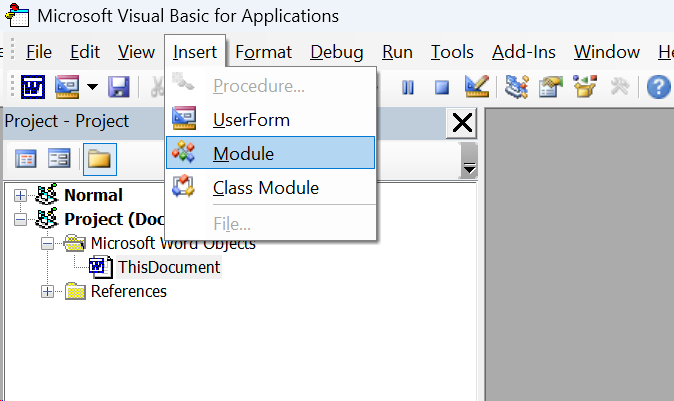
Paste this macro.
Return to Word.
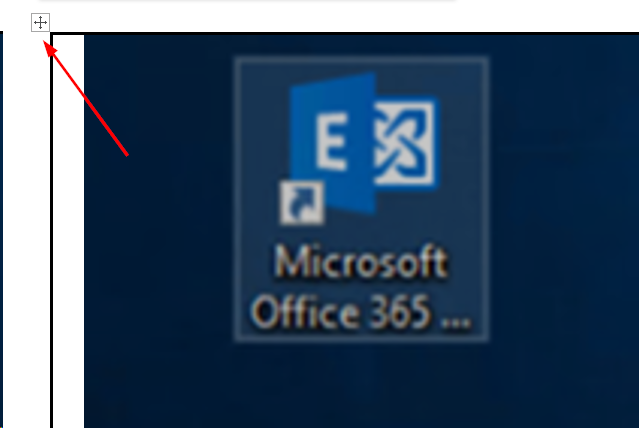
Choose the table you want to auto format the pics > Select the table upper corner
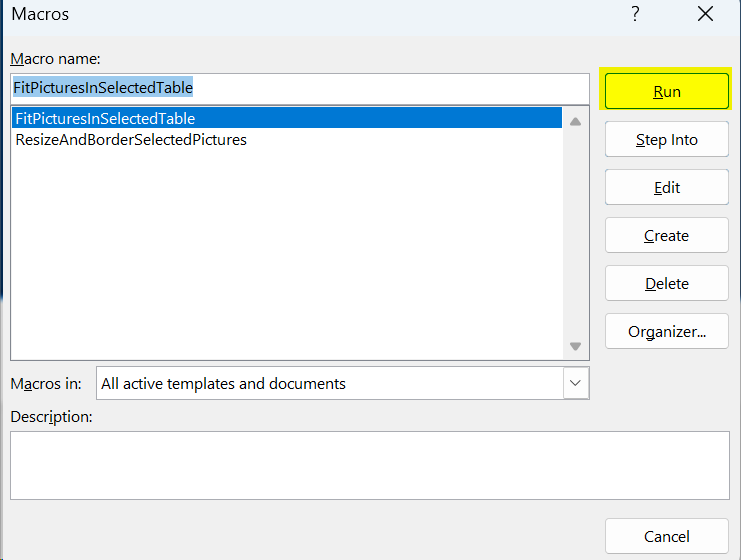
Press Alt + F8 → choose FitSelectedPicturesToTableCells → Run.
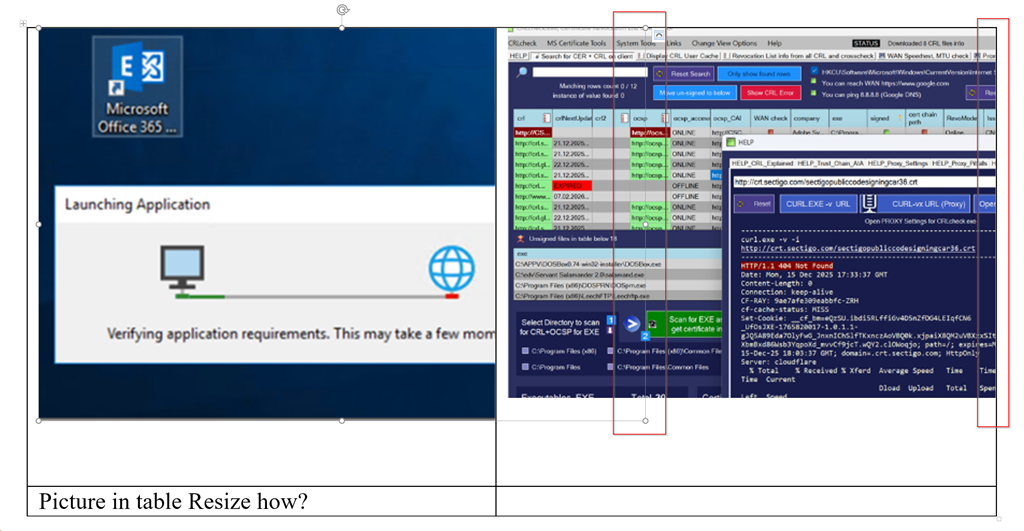
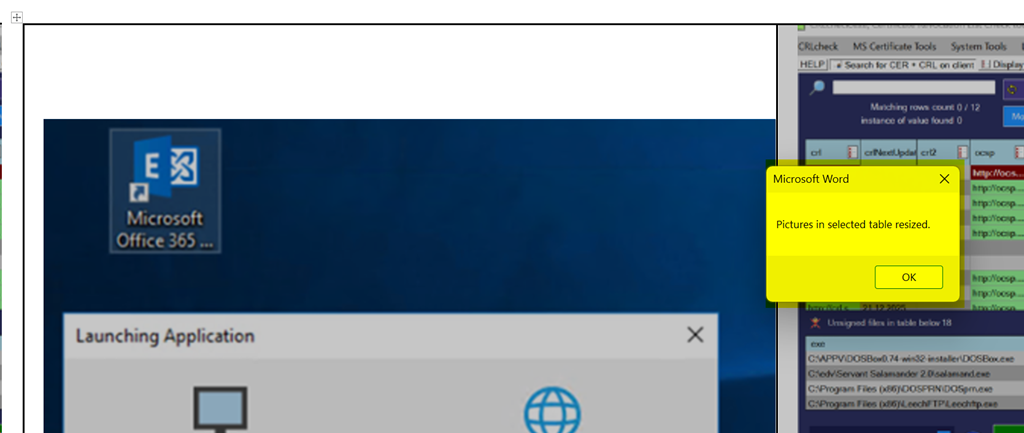
Before: WinWord table with two picture in it overlapping and strange arranged from Cut and Paste or Screenshot tools
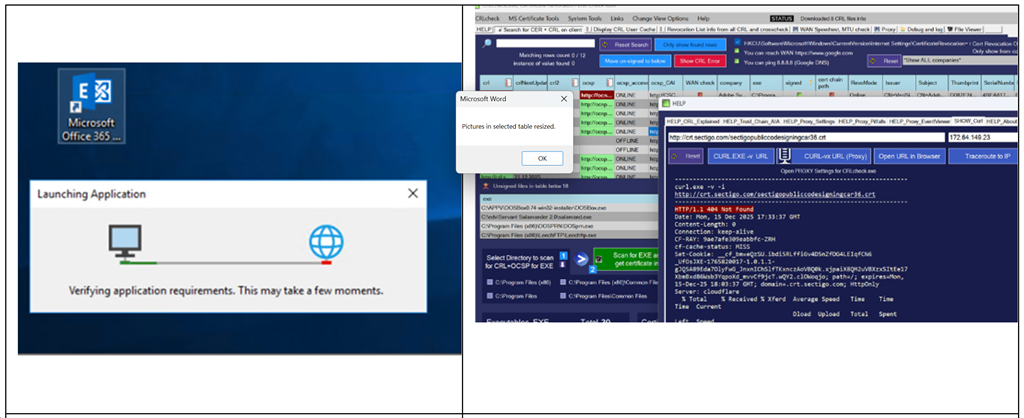
After:
Macro:
Option Explicit

Sub FitPicturesInSelectedTable()

    Dim ils As InlineShape
    Dim shp As Shape
    Dim tbl As Table
    Dim c As Cell
    Const Margin As Single = 4

    If Selection.Tables.Count = 0 Then
        MsgBox "Please select a table first."
        Exit Sub
    End If

    Set tbl = Selection.Tables(1)

    'Inline pictures
    For Each ils In tbl.Range.InlineShapes

        Set c = ils.Range.Cells(1)

        With ils
            .LockAspectRatio = True

            If .Width > c.Width - Margin Then
                .Width = c.Width - Margin
            End If

            If .Height > c.Height - Margin Then
                .Height = c.Height - Margin
            End If
        End With

        c.Range.ParagraphFormat.Alignment = wdAlignParagraphCenter
        c.VerticalAlignment = wdCellAlignVerticalCenter

    Next ils

    'Floating pictures
    For Each shp In tbl.Range.ShapeRange

        Set c = shp.Anchor.Cells(1)

        With shp
            .LockAspectRatio = msoTrue

            If .Width > c.Width - Margin Then
                .Width = c.Width - Margin
            End If

            If .Height > c.Height - Margin Then
                .Height = c.Height - Margin
            End If
        End With

    Next shp

    MsgBox "Pictures in selected table resized."

End Sub